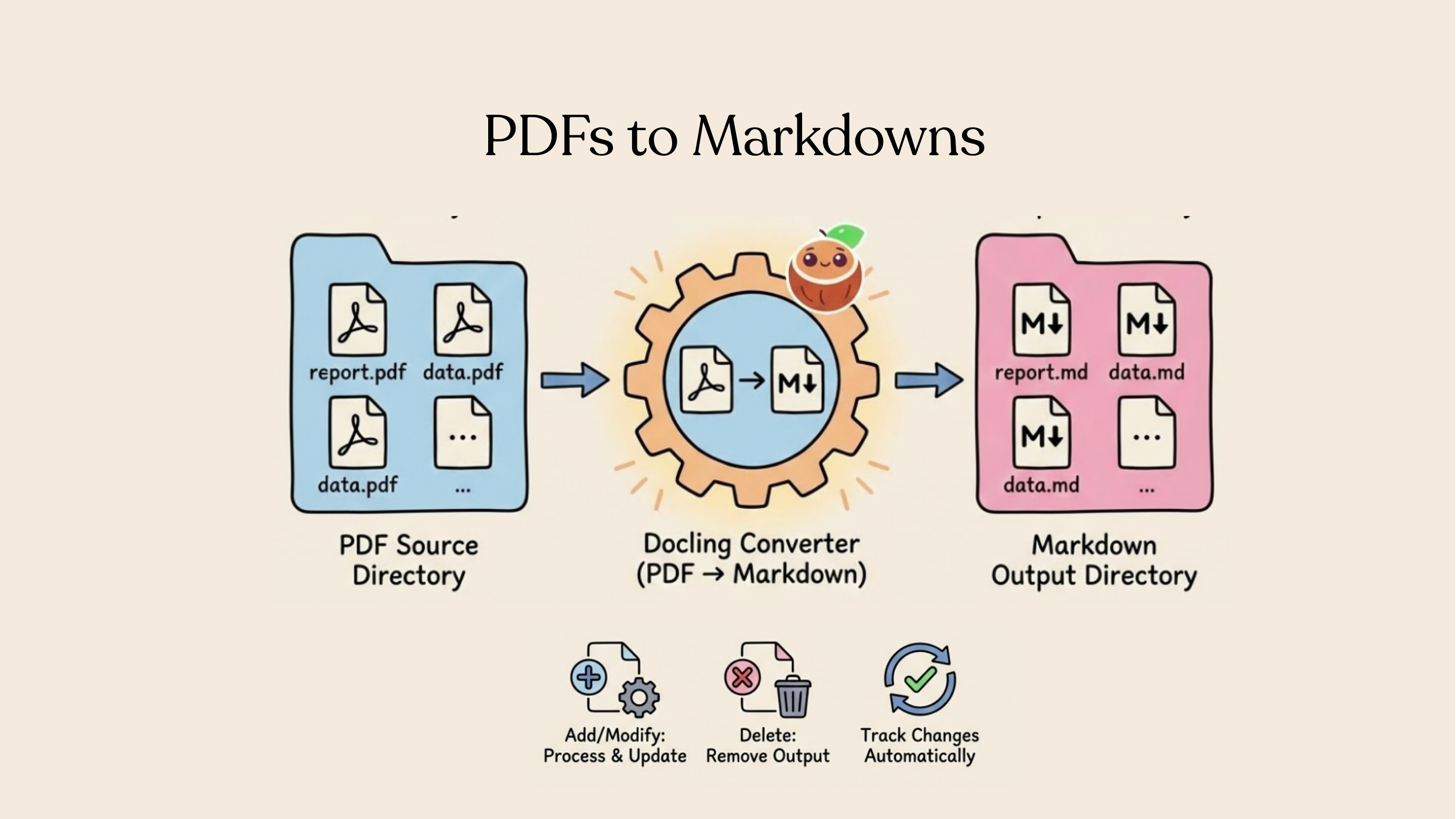
In this tutorial, we’ll build a simple app that converts PDF files to Markdown and saves them to a local directory.
Overview

- Read PDF files from a local directory
- Convert each file to Markdown using Docling
- Save the Markdown files to an output directory (as target states)
You declare the transformation logic with native Python without worrying about changes.
Think: target_state = transformation(source_state)
When your source data is updated, or your processing logic is changed (for example, switching parsers or tweaking conversion settings), CocoIndex performs smart incremental processing that only reprocesses the minimum. And it keeps your Markdown files always up to date in production.
Setup
-
Install CocoIndex and dependencies:
pip install 'cocoindex>=1.0.0a1' docling -
Create a new directory for your project:
mkdir pdf-to-markdown cd pdf-to-markdown -
Create a
pdf_files/directory and add your PDF files:mkdir pdf_filesYou can download sample PDF files from the git repo.
-
Create a
.envfile to configure the database path:echo "COCOINDEX_DB=./cocoindex.db" > .env
Define the app
Define a CocoIndex App — the top-level runnable unit in CocoIndex.

from cocoindex.connectors import localfs
from cocoindex.resources.file import PatternFilePathMatcher
from docling.document_converter import DocumentConverter

app = coco.App(
    coco.AppConfig(name="PdfToMarkdown"),
    app_main,
    sourcedir=pathlib.Path("./pdf_files"),
    outdir=pathlib.Path("./out"),
)Define the main function
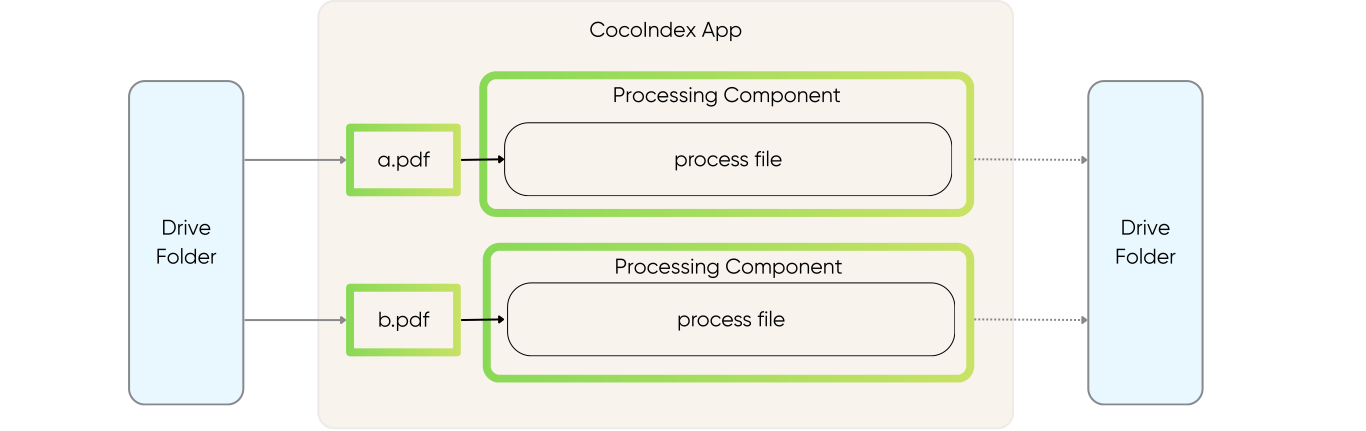
In the main function, we walk through each file in the source directory and process it.
@coco.function
def app_main(sourcedir: pathlib.Path, outdir: pathlib.Path) -> None:
    files = localfs.walk_dir(
        sourcedir,
        recursive=True,
        path_matcher=PatternFilePathMatcher(included_patterns=["*.pdf"]),
    )
    for f in files:
        coco.mount(
            coco.component_subpath("process", str(f.file_path.path)),
            process_file,
            f,
            outdir,
        )
For each file, coco.mount() mounts a processing component. It’s up to you to pick the process granularity, for example it can be
- at directory level,
- at file level,
- at page level.
In this example, because we want to independently convert each file to Markdown, it is the most natural to pick it at the file level.
Define file processing
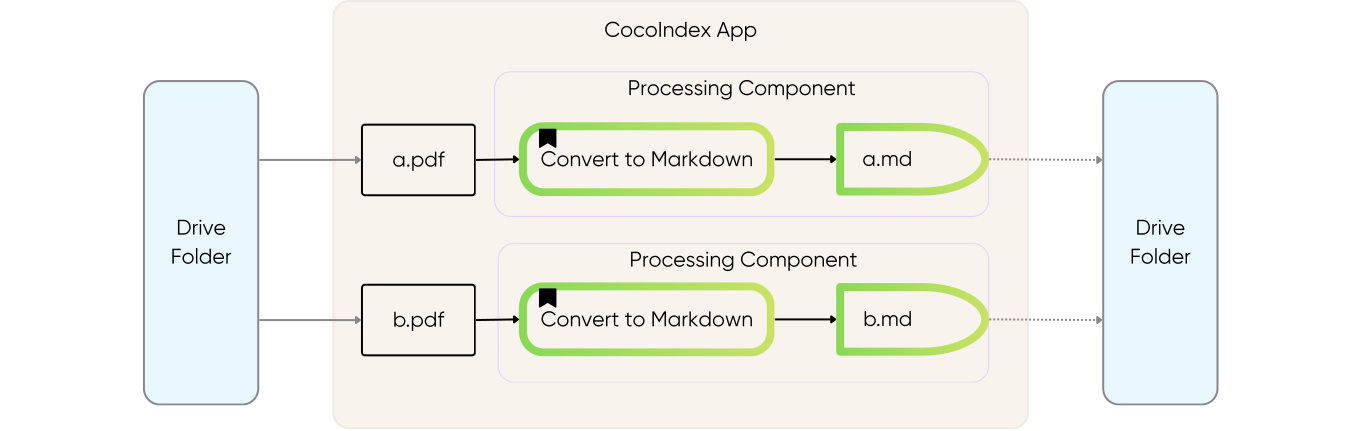
For a file, we use Docling to convert it to Markdown.
_converter = DocumentConverter()

@coco.function(memo=True)
def process_file(
    file: localfs.File,
    outdir: pathlib.Path,
) -> None:
    markdown = _converter.convert(
        file.file_path.resolve()
    ).document.export_to_markdown()
    outname = file.file_path.path.stem + ".md"
    localfs.declare_file(outdir / outname, markdown, create_parent_dirs=True)
We use @coco.function with memo=True to create a memoized function that processes each file.
Run the pipeline
Run the pipeline:
cocoindex update main.pyCocoIndex will:
- Create the
out/directory - Convert each PDF in
pdf_files/to Markdown inout/
Check the output:
ls out/
# example.md (one .md file for each input PDF)
Incremental updates
The power of CocoIndex is incremental processing. Try these:
Add a new file:
Add a new PDF to pdf_files/, then run:
cocoindex update main.pyOnly the new file is processed.
Modify a file:
Replace a PDF in pdf_files/ with an updated version, then run:
cocoindex update main.pyOnly the changed file is reprocessed.
Delete a file:
rm pdf_files/example.pdf
cocoindex update main.py
The corresponding Markdown file is automatically removed.