The documents you actually search are rarely on your laptop; they are in a shared Google Drive folder. This post indexes that folder with CocoIndex v1: it reads each document, splits it into chunks, embeds each chunk, and stores the vectors in Postgres, so you can find a passage by what it means rather than by remembering its filename.
If text embeddings are new to you, Text embeddings 101 explains the idea first. This post is the same recipe with the source swapped to Google Drive; the interesting part here is connecting to Drive.
The full code is in the CocoIndex v1 repo.
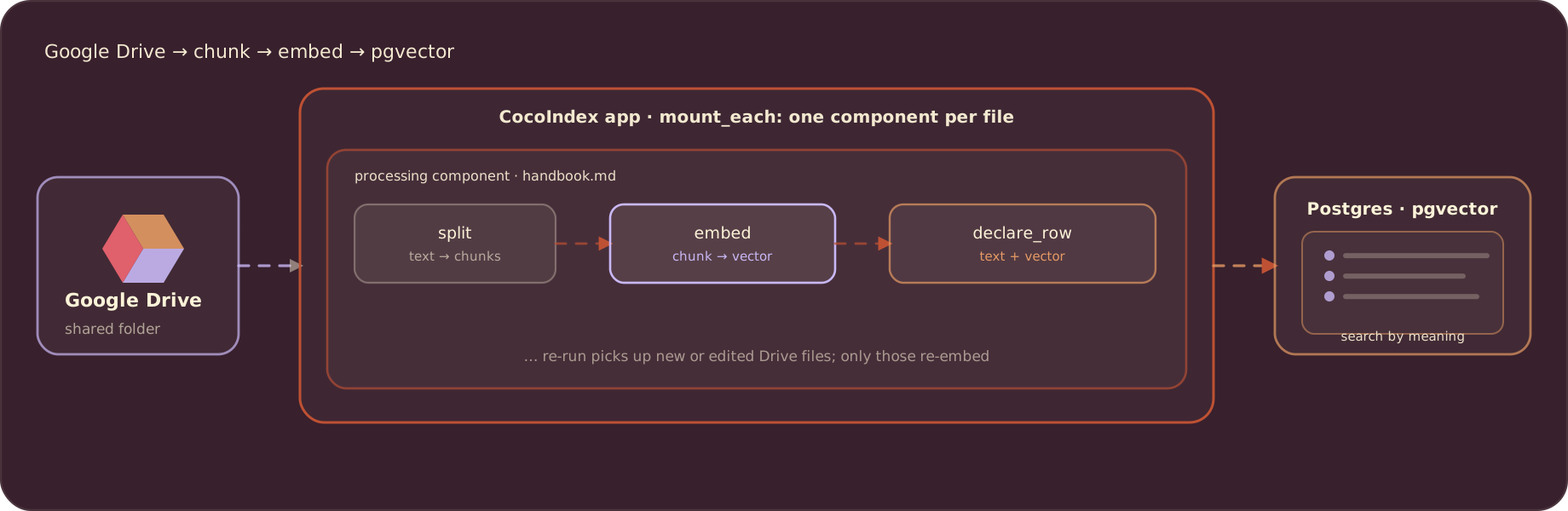
The flow
Each file in the folder is its own processing component: read it, split it into chunks, embed each chunk, and declare a row in Postgres pgvector:
Connect Google Drive
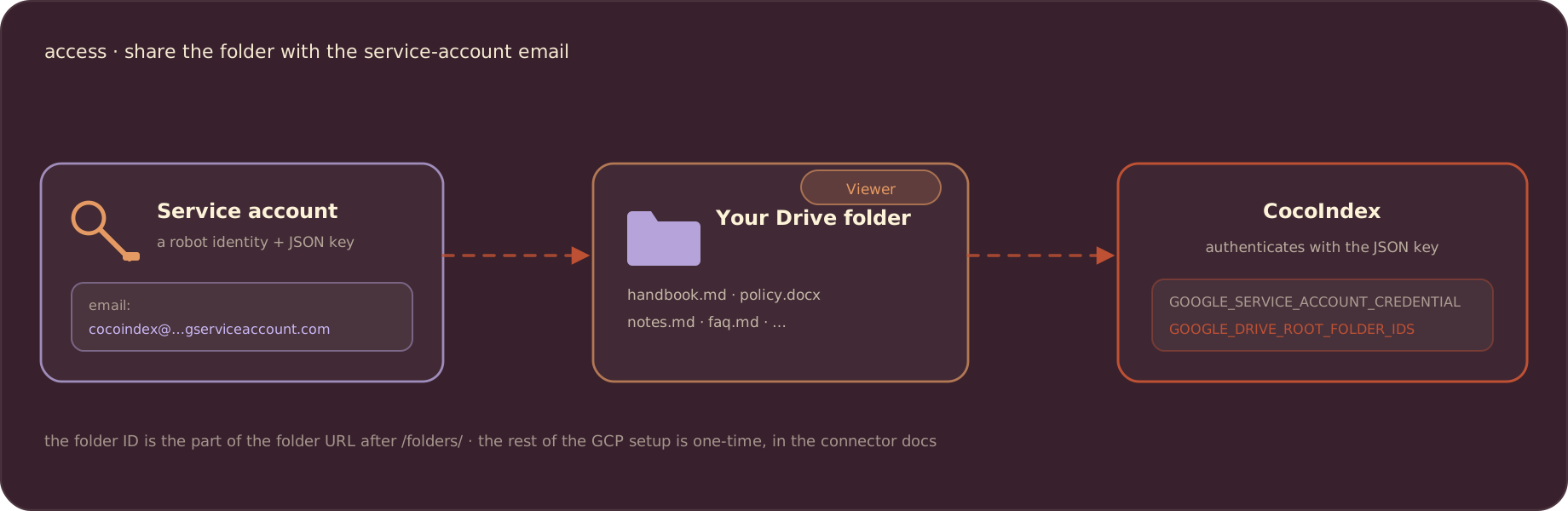
CocoIndex reads Drive through a Google Cloud service account: a robot identity with a JSON key. You grant that identity read access by sharing your folder with its email address, and CocoIndex authenticates with the key. That sharing step is the whole access model:
The setup is one-time. Here is the full walkthrough; the same steps are in the Google Drive connector docs.
Enable Google Drive access by service account
CocoIndex provides a native builtin to support Google Drive as a source. You could find the full documentation here.
1. Register / log in to Google Cloud.
First, you need to create a Google Cloud account if you don’t have one already. Go to the Google Cloud Console and sign up or sign in.
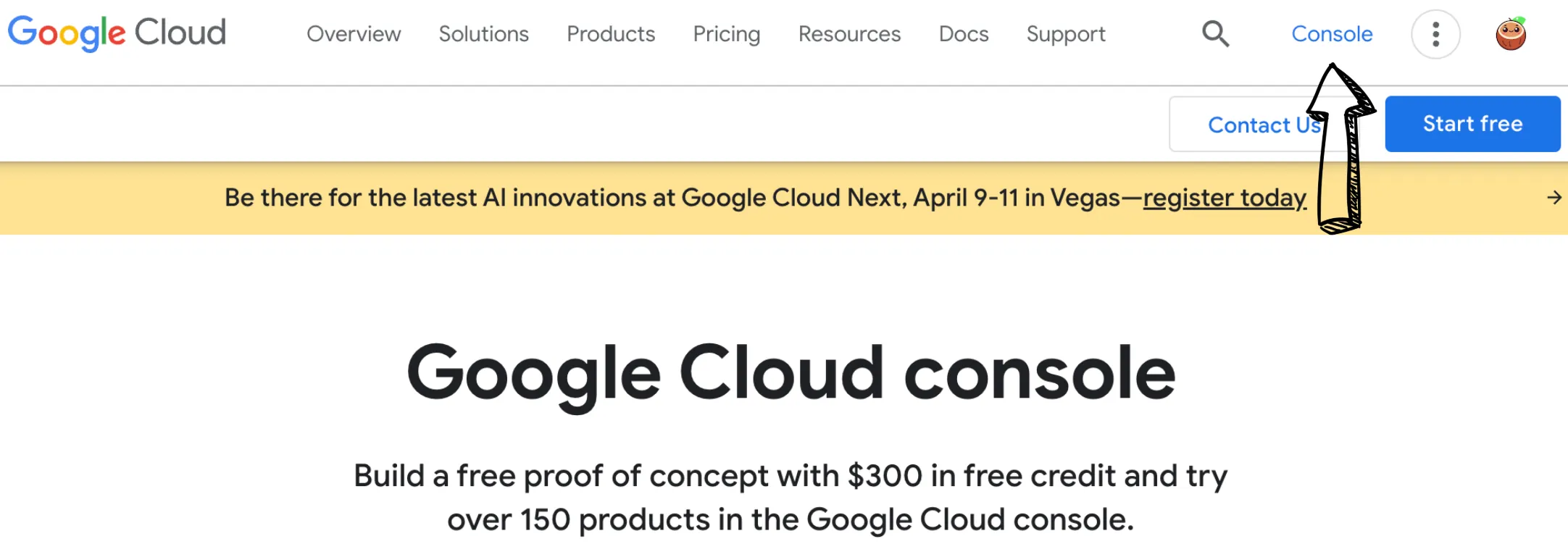
2. Select or create a GCP project
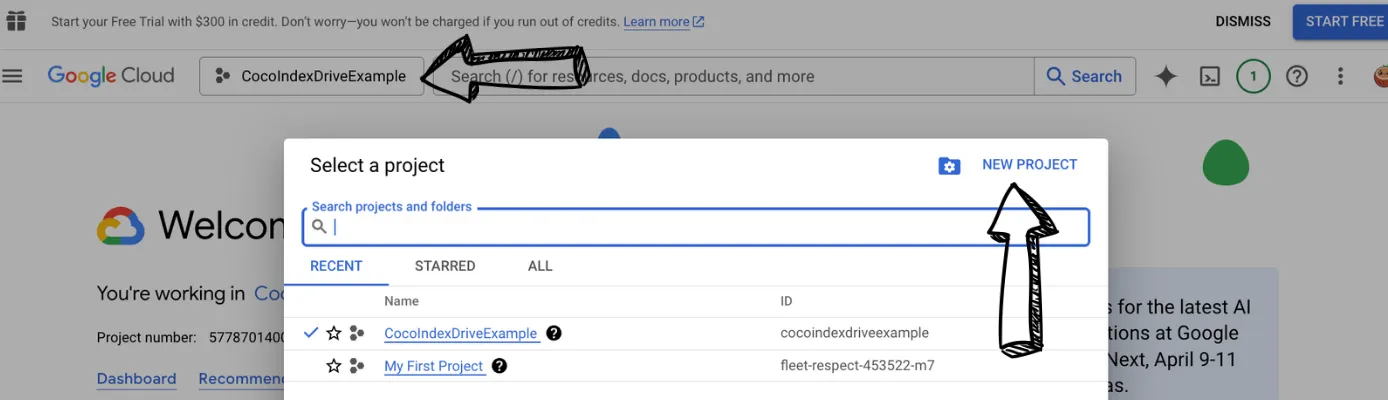
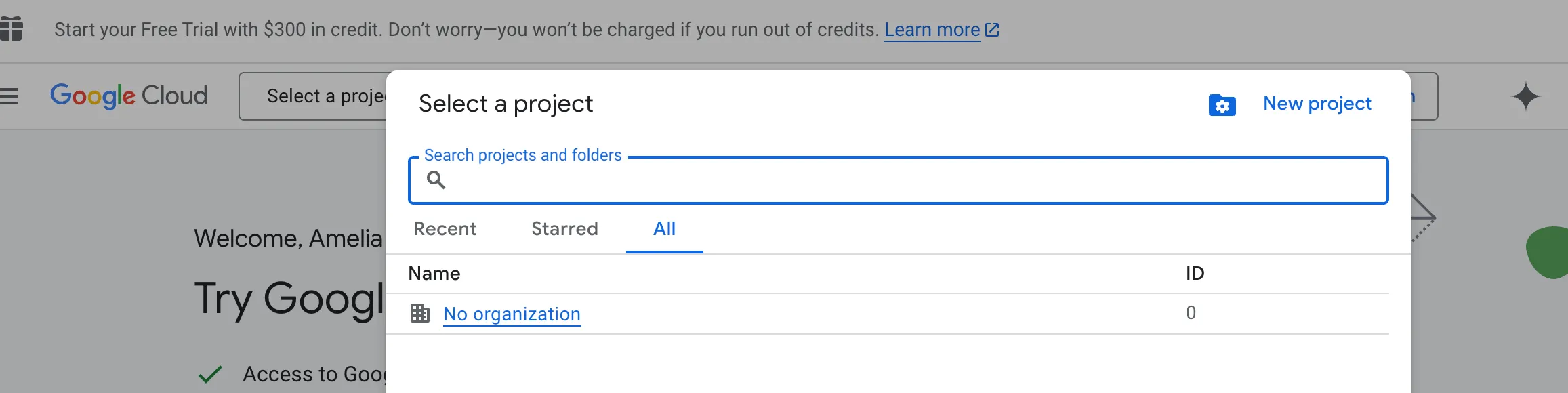
Once you’ve logged into Google Cloud Console, you need to select an existing project or create a new one. Click on the project selector dropdown at the top of the page:
-
If you already have a project, you can select from here:
-
If you are new to Google Cloud, it looks like this:
3. Create a service account
-
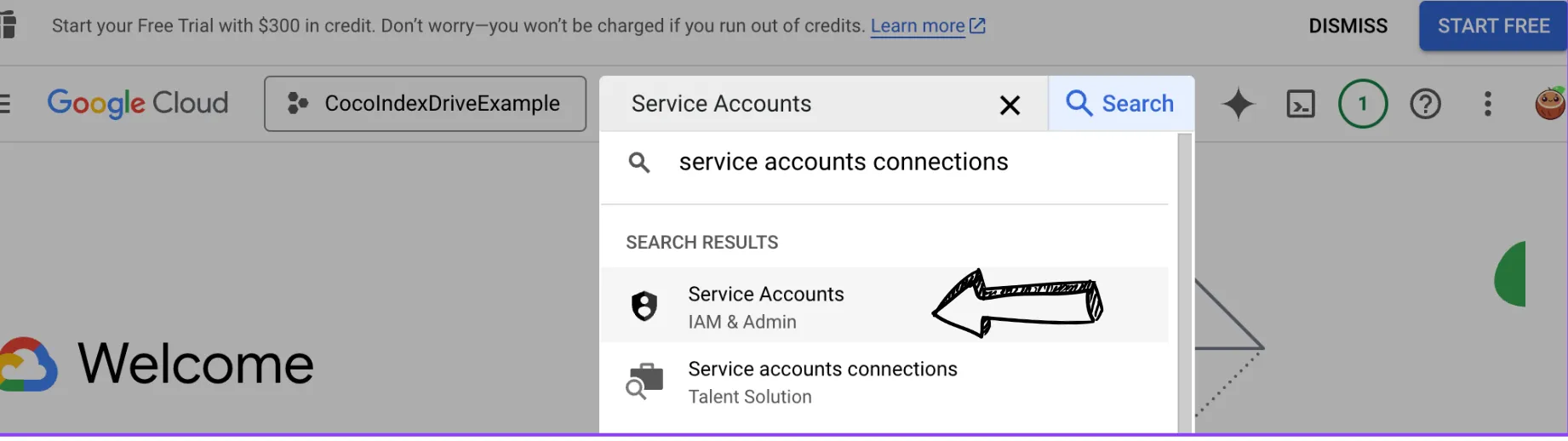
In Google Cloud Console, search for Service Accounts, to enter the IAM & Admin / Service Accounts page.
-
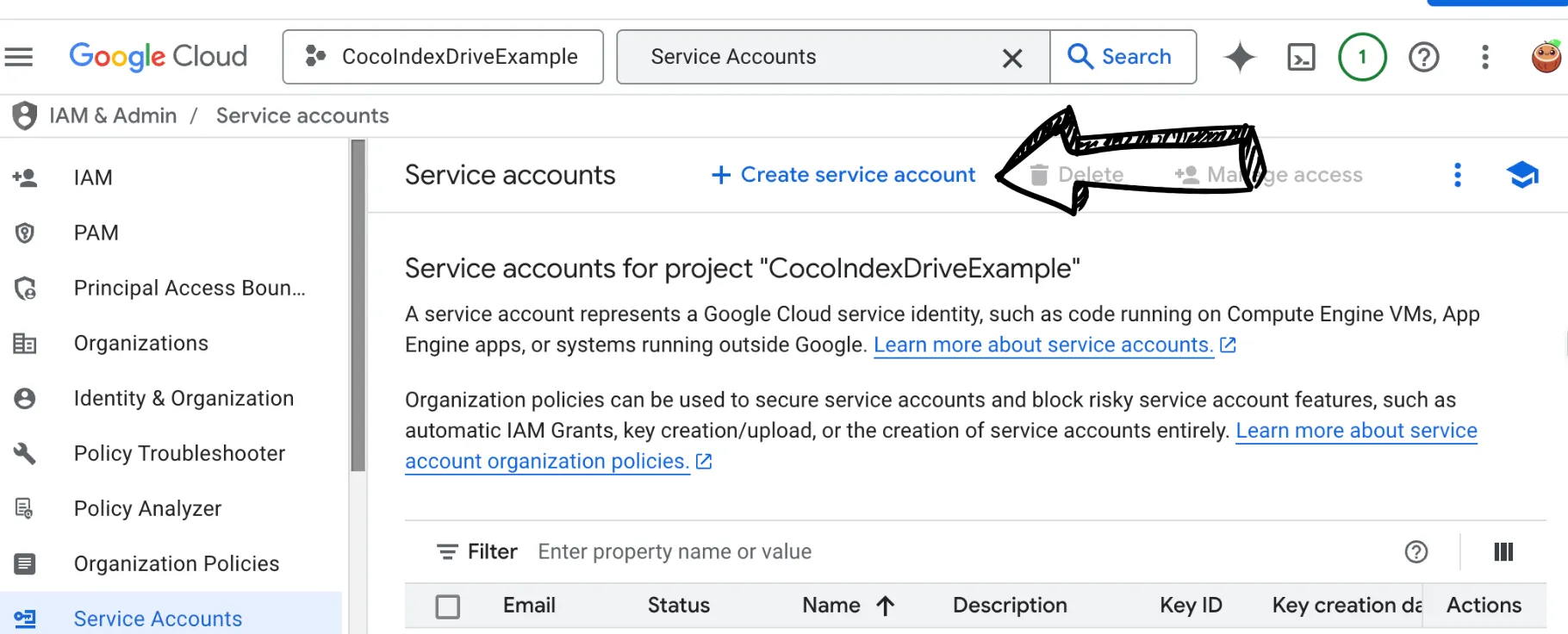
Click on “CREATE SERVICE ACCOUNT” at the top of the page:
-
Fill in the service account name, e.g.
cocoindex-test.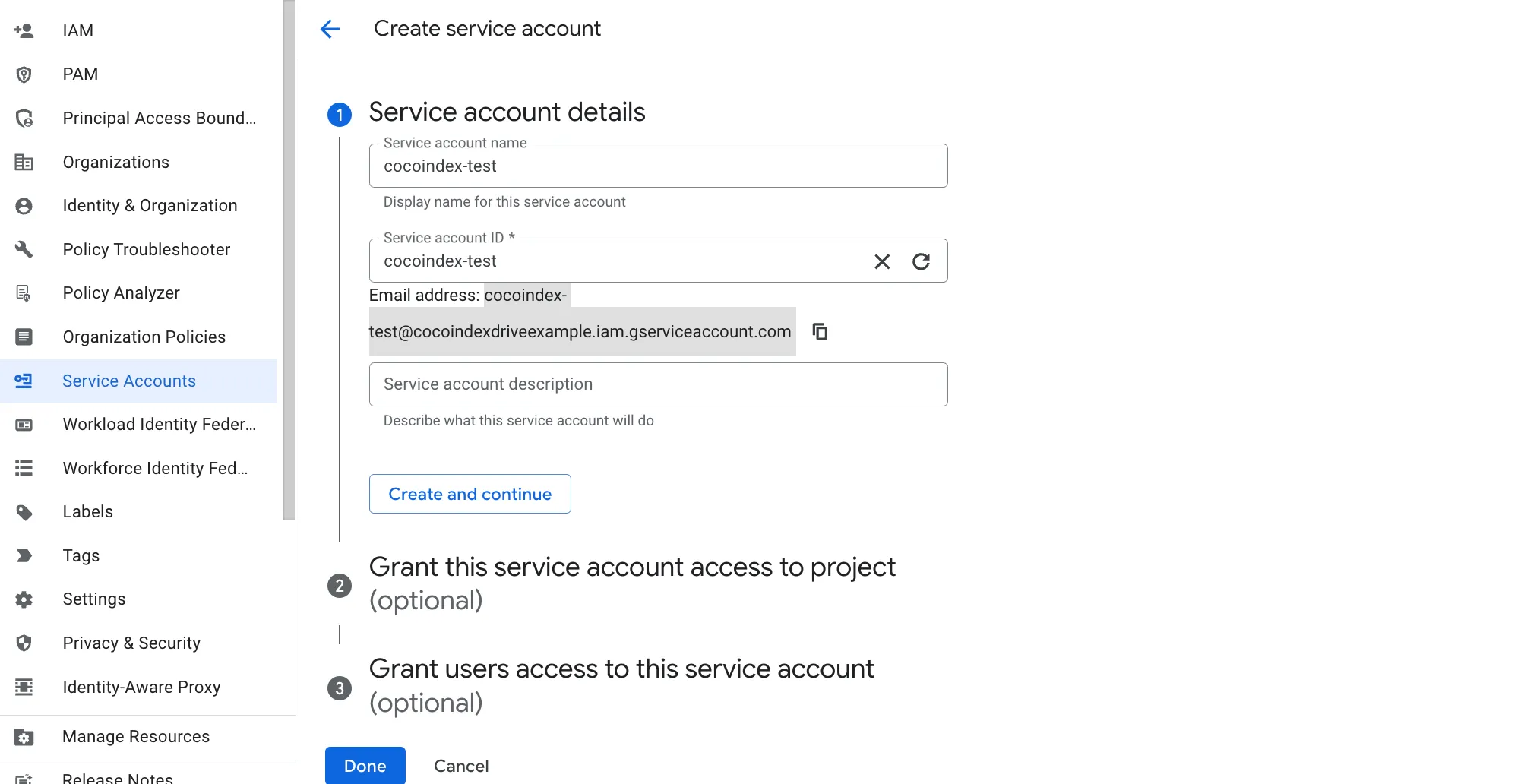
And make a note of that email address; you will need it in a later step.
-
Click on “CREATE” to create the service account. You will see the service account created successfully.
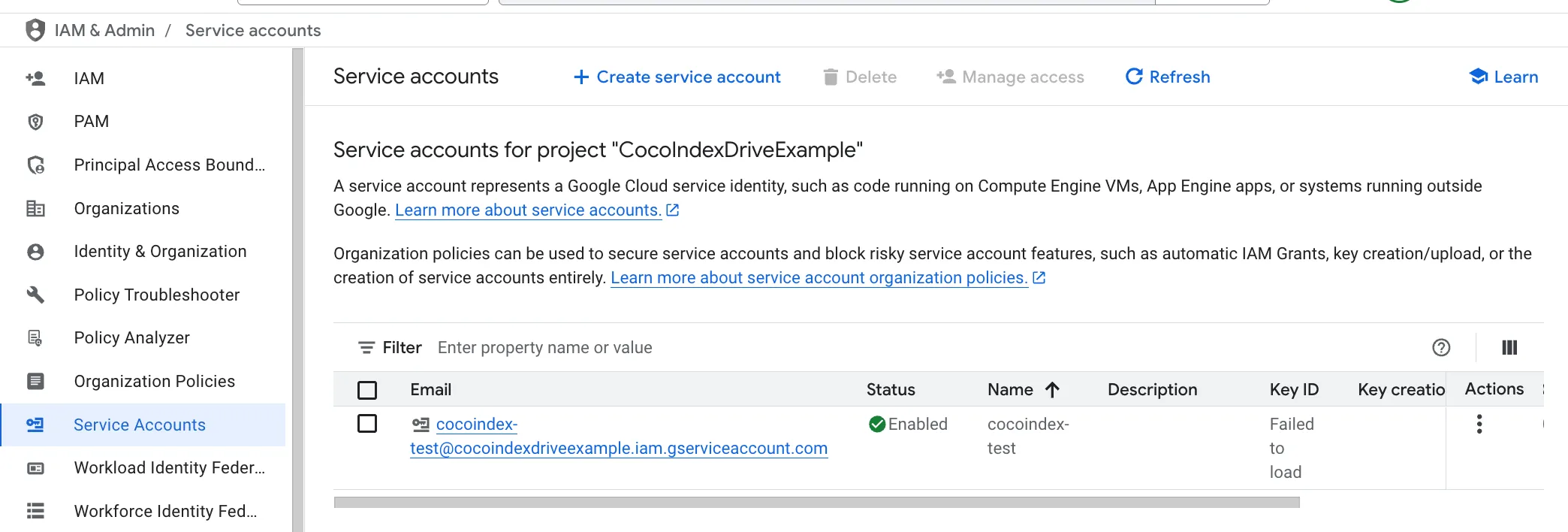
4. Create and download the key for the service account
-
Click on “Actions” and select “Manage Keys”.
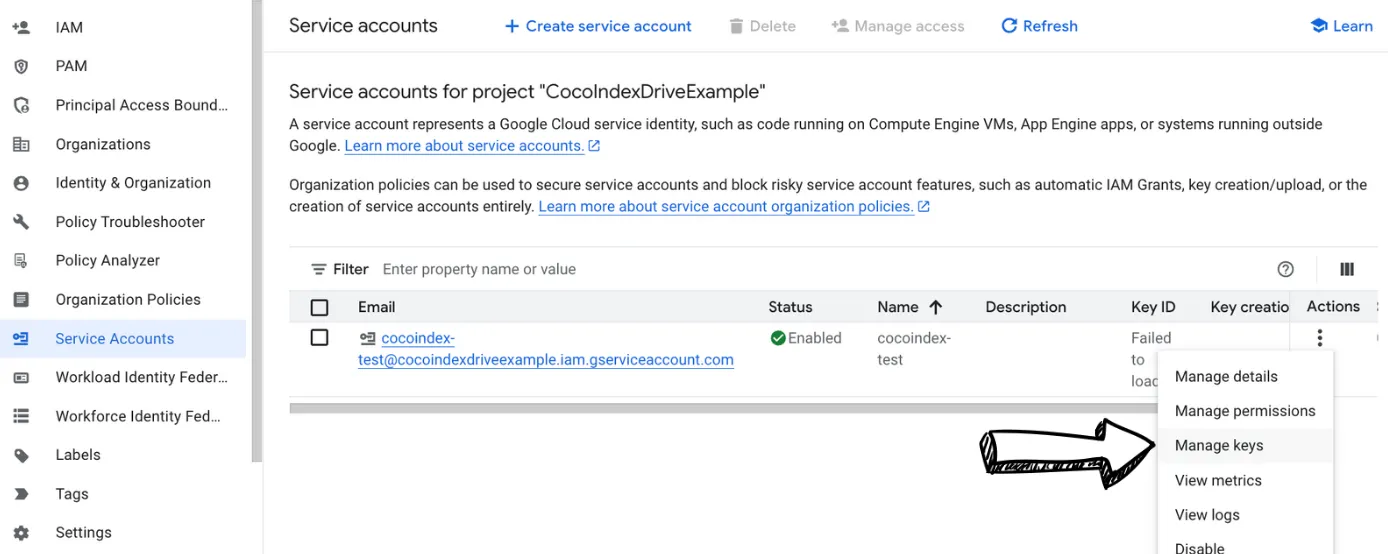
-
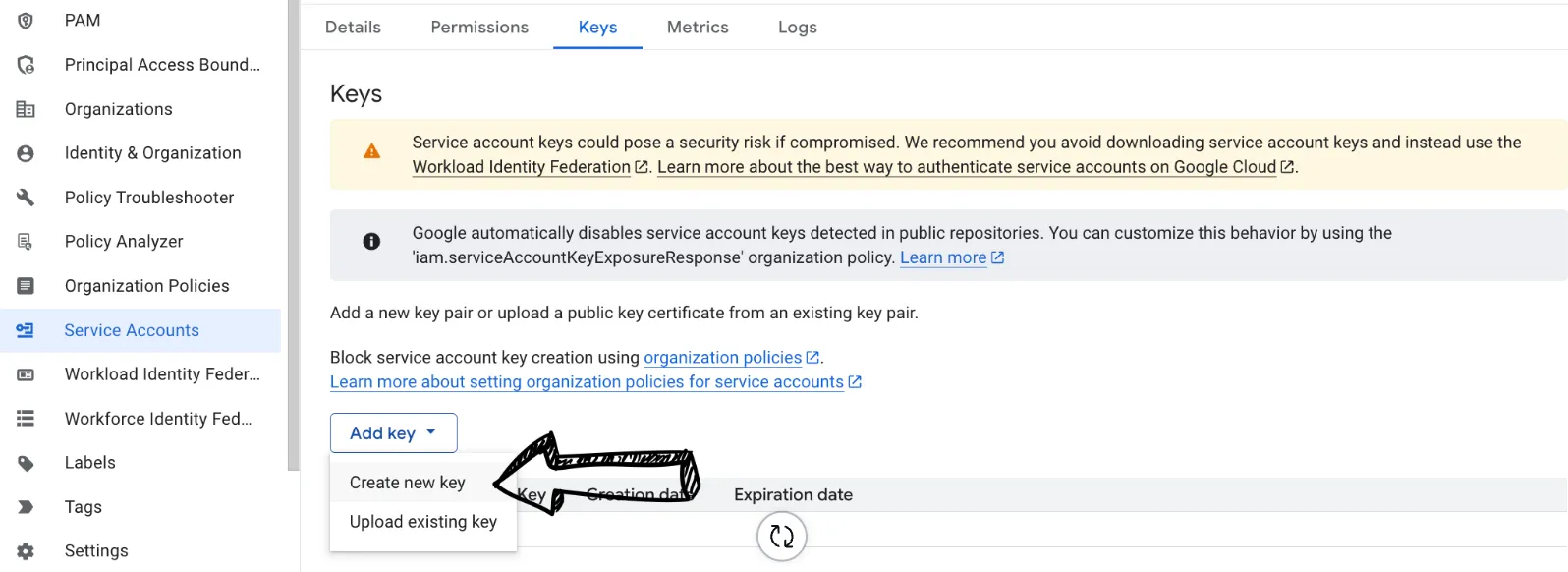
Select “Add Key” and select “Create new key”.
Choose “JSON” as the key type and click “Create”.
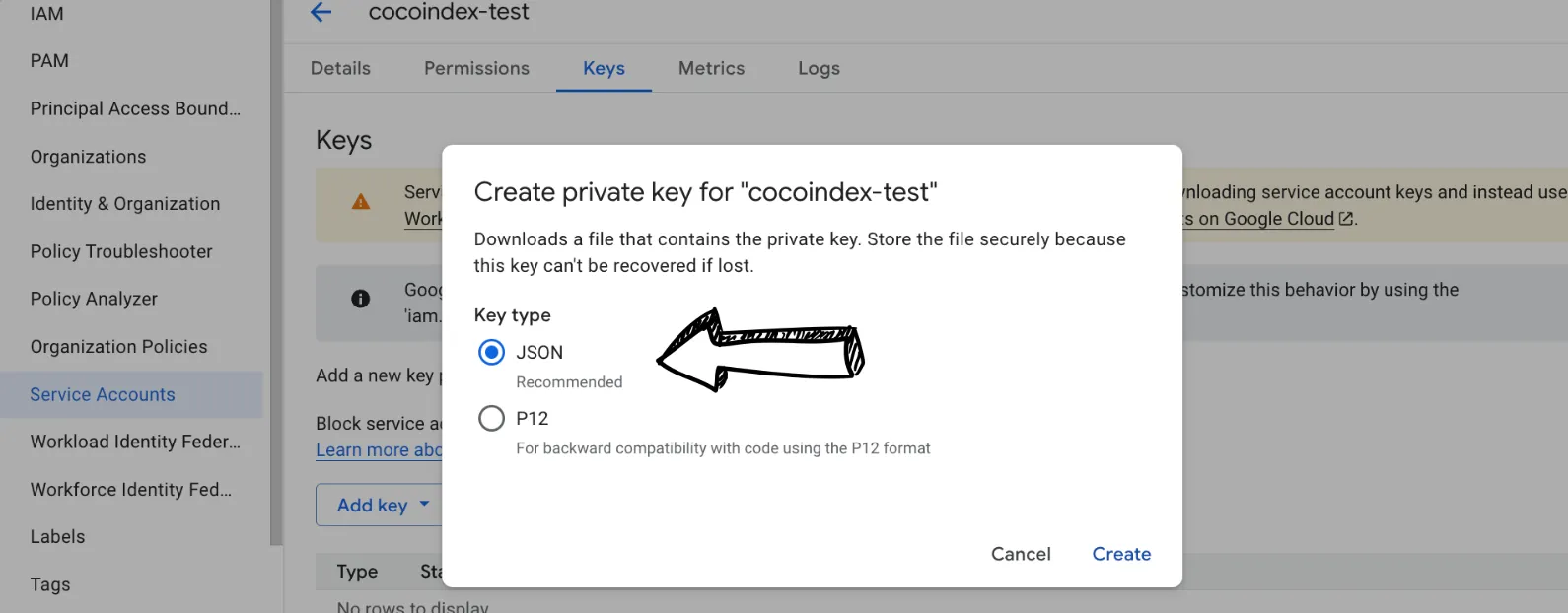
-
The key file will be downloaded to your computer. Depending on the browser setting, it starts downloading automatically or may pop up a dialog for the location to download. Keep this file secure as it provides access to your Google Drive resources.
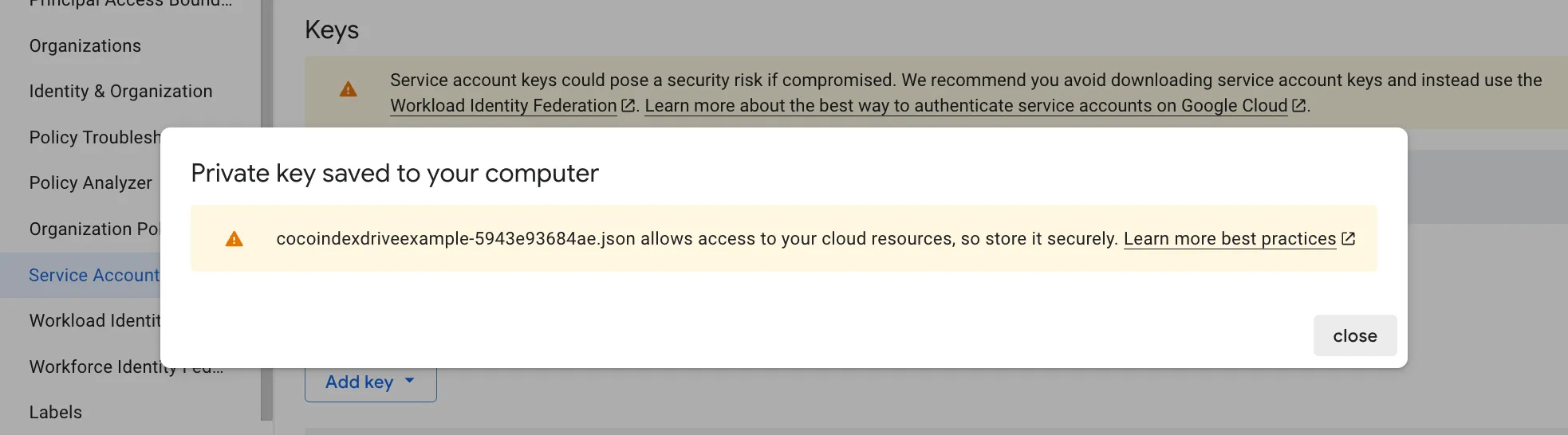
It looks like this:
{
"type": "service_account",
"project_id": "cocoindexdriveexample",
"private_key_id": "key_id",
"private_key": "PRIVATE_KEY",
"client_email": "[email protected]",
"client_id": "id",
"auth_uri": "https://accounts.google.com/o/oauth2/auth",
"token_uri": "https://oauth2.googleapis.com/token",
"auth_provider_x509_cert_url": "https://www.googleapis.com/oauth2/v1/certs",
"client_x509_cert_url": "https://www.googleapis.com/robot/v1/metadata/x509/cocoindex-test%40cocoindexdriveexample.iam.gserviceaccount.com",
"universe_domain": "googleapis.com"
}
5. Enable Google Drive API
Search for “Google Drive API” and select it.
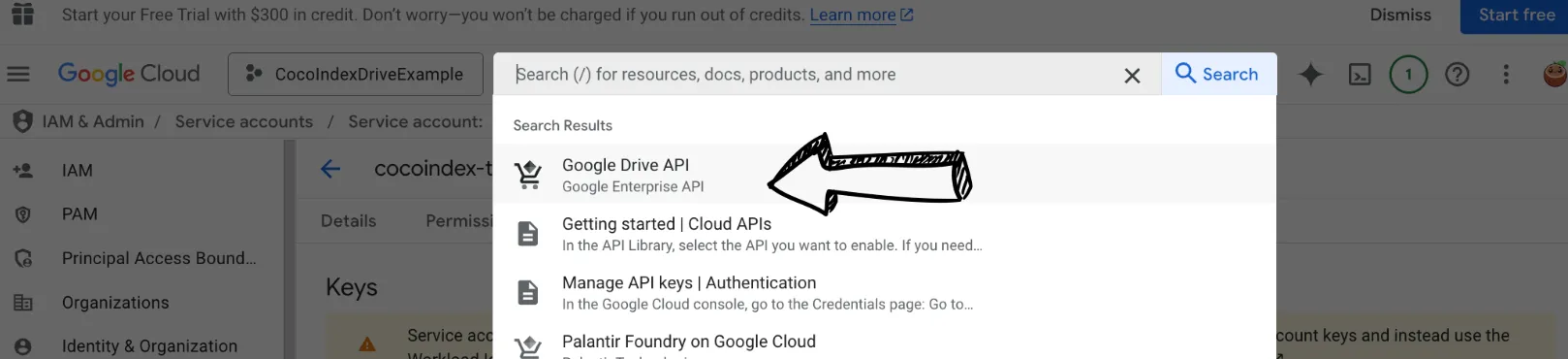
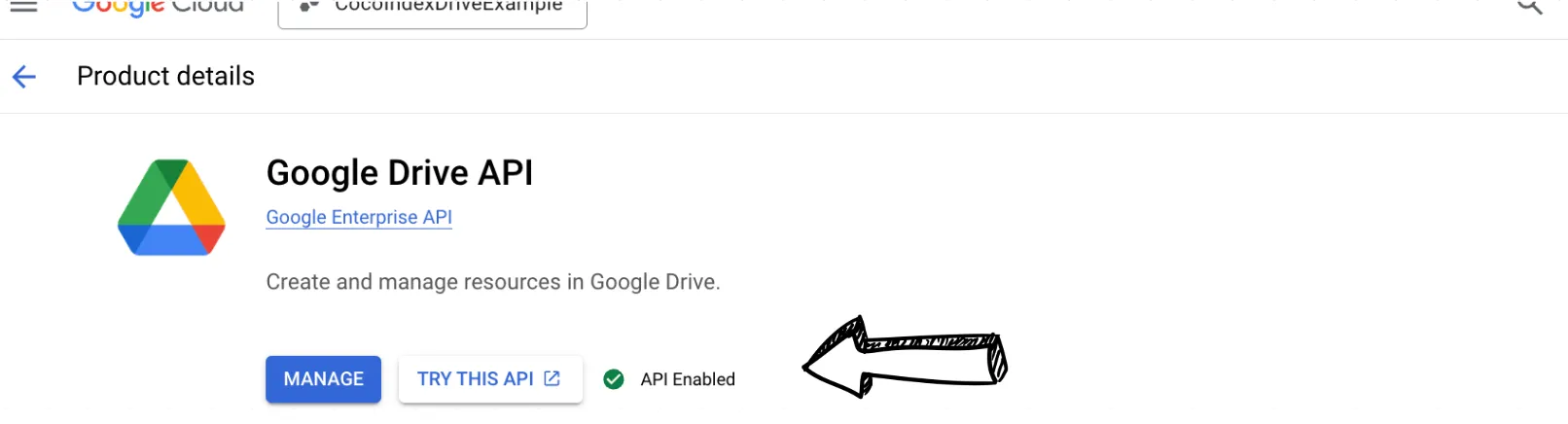
Make sure it is enabled. You can check it from the page.
6. Prepare and share a folder
-
Create a new folder or use an existing folder in your Google Drive.
- For this project, we will create a folder in my own Google Drive, and share it with the service account email address we created in Step 3. For example,
[email protected]. - The files are also available in the example repo.
- For this project, we will create a folder in my own Google Drive, and share it with the service account email address we created in Step 3. For example,
-
Share the folder with the service account. Enter the service account email address (e.g.,
[email protected]) and give it “Viewer” access.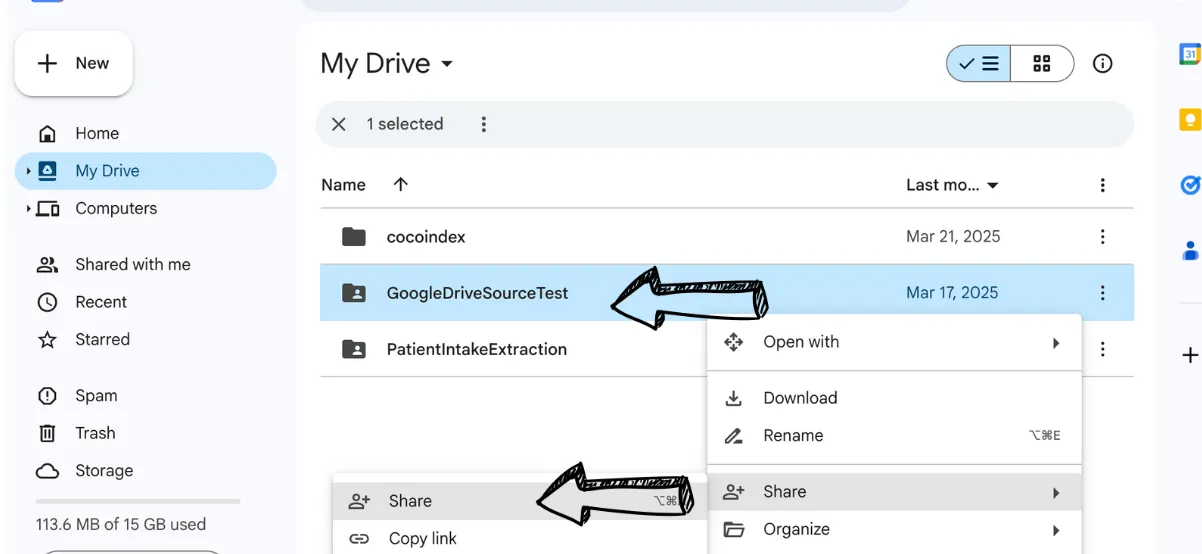
-
Note the folder ID from the URL when you open the folder. The URL will look like:
https://drive.google.com/drive/folders/1AbCdEfGhIjKlMnOpQrStUvWxYzThe folder ID is the part after
folders/(in this example:1AbCdEfGhIjKlMnOpQrStUvWxYz). You’ll need this folder ID when connecting to the Google Drive API.
Now you are all set! 🎉 You can start to build your text embeddings from Google Drive. 📁✨
Then point the pipeline at the credential and folder with a .env file:
POSTGRES_URL=postgres://cocoindex:cocoindex@localhost/cocoindex
GOOGLE_SERVICE_ACCOUNT_CREDENTIAL=/path/to/service_account_credential.json
GOOGLE_DRIVE_ROOT_FOLDER_IDS=1AbCdEfGhIjKlMnOpQrStUvWxYz
Define the pipeline
The Postgres pool and the embedder are provided once in the app lifespan and read anywhere with coco.use_context:
import cocoindex as coco
from cocoindex.connectors import google_drive, postgres
from cocoindex.ops.sentence_transformers import SentenceTransformerEmbedder
from cocoindex.ops.text import RecursiveSplitter

EMBED_MODEL = "sentence-transformers/all-MiniLM-L6-v2"
PG_DB = coco.ContextKey[asyncpg.Pool]("gdrive_text_embedding_db")
EMBEDDER = coco.ContextKey[SentenceTransformerEmbedder]("embedder", detect_change=True)

_splitter = RecursiveSplitter()


@coco.lifespan
async def coco_lifespan(builder: coco.EnvironmentBuilder) -> AsyncIterator[None]:
    async with asyncpg.create_pool(DATABASE_URL) as pool:
        builder.provide(PG_DB, pool)
        builder.provide(EMBEDDER, SentenceTransformerEmbedder(EMBED_MODEL))
        yield
Each chunk becomes one row. The embedding column is annotated with the embedder so CocoIndex knows the vector’s size:
@dataclass
class DocEmbedding:
    id: int
    filename: str
    text: str
    embedding: Annotated[NDArray, EMBEDDER]
Chunk, embed, declare
process_file reads one Drive file, splits it into chunks, and maps _emit_chunk over them; _emit_chunk embeds the chunk and declares its row. memo=True caches per-file work, so an unchanged file is skipped on the next run:
@coco.fn(memo=True)
async def process_file(
    file: google_drive.DriveFile,
    table: postgres.TableTarget[DocEmbedding],
) -> None:
    text = await file.read_text()
    chunks = _splitter.split(text, chunk_size=2000, chunk_overlap=500, language="markdown")
    id_gen = IdGenerator()
    await coco.map(_emit_chunk, chunks, file.file_path.path.as_posix(), id_gen, table)


@coco.fn
async def _emit_chunk(
    chunk: Chunk,
    filename: str,
    id_gen: IdGenerator,
    table: postgres.TableTarget[DocEmbedding],
) -> None:
    table.declare_row(
        row=DocEmbedding(
            id=await id_gen.next_id(chunk.text),
            filename=filename,
            text=chunk.text,
            embedding=await coco.use_context(EMBEDDER).embed(chunk.text),
        ),
    )
Wire up the app
app_main mounts the pgvector table, points the Google Drive source at your folders, and fans out one process_file per file with mount_each:
@coco.fn
async def app_main() -> None:
    table = await postgres.mount_table_target(
        PG_DB,
        table_name="doc_embeddings",
        table_schema=await postgres.TableSchema.from_class(DocEmbedding, primary_key=["id"]),
        pg_schema_name="coco_examples",
    )

    source = google_drive.GoogleDriveSource(
        service_account_credential_path=os.environ["GOOGLE_SERVICE_ACCOUNT_CREDENTIAL"],
        root_folder_ids=[
            f.strip()
            for f in os.environ["GOOGLE_DRIVE_ROOT_FOLDER_IDS"].split(",")
            if f.strip()
        ],
    )
    await coco.mount_each(process_file, source.items(), table)


app = coco.App(coco.AppConfig(name="GoogleDriveTextEmbedding"), app_main)
source.items() yields one (path, DriveFile) per document, and mount_each gives each file a stable component path so change detection is per file.
Run and search
Install and build the index:
pip install "cocoindex[postgres,google_drive]" sentence-transformers asyncpg pgvector
cocoindex update main
The first run embeds every document in the folder. Re-run cocoindex update main anytime and only new or edited files are re-embedded, so keeping the index current is cheap; schedule it (cron, a cloud function) for whatever freshness you need.
Then search from the command line. The query is embedded with the same model, and Postgres returns the nearest chunks by cosine distance, even when they share none of your words:
python main.py "how do I request time off?"Where it goes next
The source is the only thing specific to Google Drive here. Swap it for Amazon S3, Azure Blob, or the local filesystem and the chunk-embed-store pipeline is unchanged. Point the retrieved chunks at an LLM and you have a question-answering assistant over your team’s Drive; keep them as-is and you have semantic search that finds the right document by meaning.
Support us
We are constantly adding examples and improving the runtime. If this was helpful, please star CocoIndex on GitHub.

About the author.

Posts from the CocoIndex team — product launches, release notes, and announcements.
Frequently asked questions.
How do I build text embeddings from Google Drive files with CocoIndex v1?
Point google_drive.GoogleDriveSource at your shared folder and hand source.items() to coco.mount_each, one component per file. Each component splits the file with RecursiveSplitter, embeds each chunk with SentenceTransformerEmbedder, and calls declare_row to store the text and its vector in a Postgres pgvector table.
See Define the pipeline.
How do I give CocoIndex access to Google Drive?
You connect through a Google Cloud service account (a robot identity with a JSON key), not a personal login. Enable the Google Drive API in a GCP project, create a service account and download its JSON key, then share your Drive folder with the service-account email with Viewer access. CocoIndex authenticates with the key and reads the shared folder. That sharing step is the whole access model.
See Connect Google Drive.
Where do I find the Google Drive folder ID?
Open the folder in Google Drive and look at the URL. For https://drive.google.com/drive/folders/1AbCdEfGhIjKlMnOpQrStUvWxYz, the folder ID is the part after folders/. Pass the IDs (comma-separated) via GOOGLE_DRIVE_ROOT_FOLDER_IDS, and the service-account JSON path via GOOGLE_SERVICE_ACCOUNT_CREDENTIAL.
See Connect Google Drive.
Which embedding model does this use, and can I swap it?
SentenceTransformerEmbedder with sentence-transformers/all-MiniLM-L6-v2, a small, fast model that turns text into a 384-number vector. You can swap in another Sentence Transformers model by changing one string; the same model must embed both the indexed chunks and the search query so the vectors are comparable.
See Define the pipeline.
Where are the embeddings stored, and how do I search them?
Each chunk is a row in a Postgres pgvector table, declared with declare_row on a target mounted by postgres.mount_table_target. To search, embed the query with the same model and ask Postgres for the nearest vectors with the <=> cosine-distance operator; python main.py "your query" does exactly that.
See Run and search.
How do I keep the Google Drive index up to date?
Re-run cocoindex update main. Because per-file work is memoized, only new or edited documents are re-embedded, so re-running is cheap; schedule it on whatever cadence you need with cron or a cloud function. The Google Drive source is a one-shot catch-up per run rather than a live watcher.
See Run and search.
