Slides-to-Speech: Turn your presentations into narrated content with CocoIndex and LanceDB


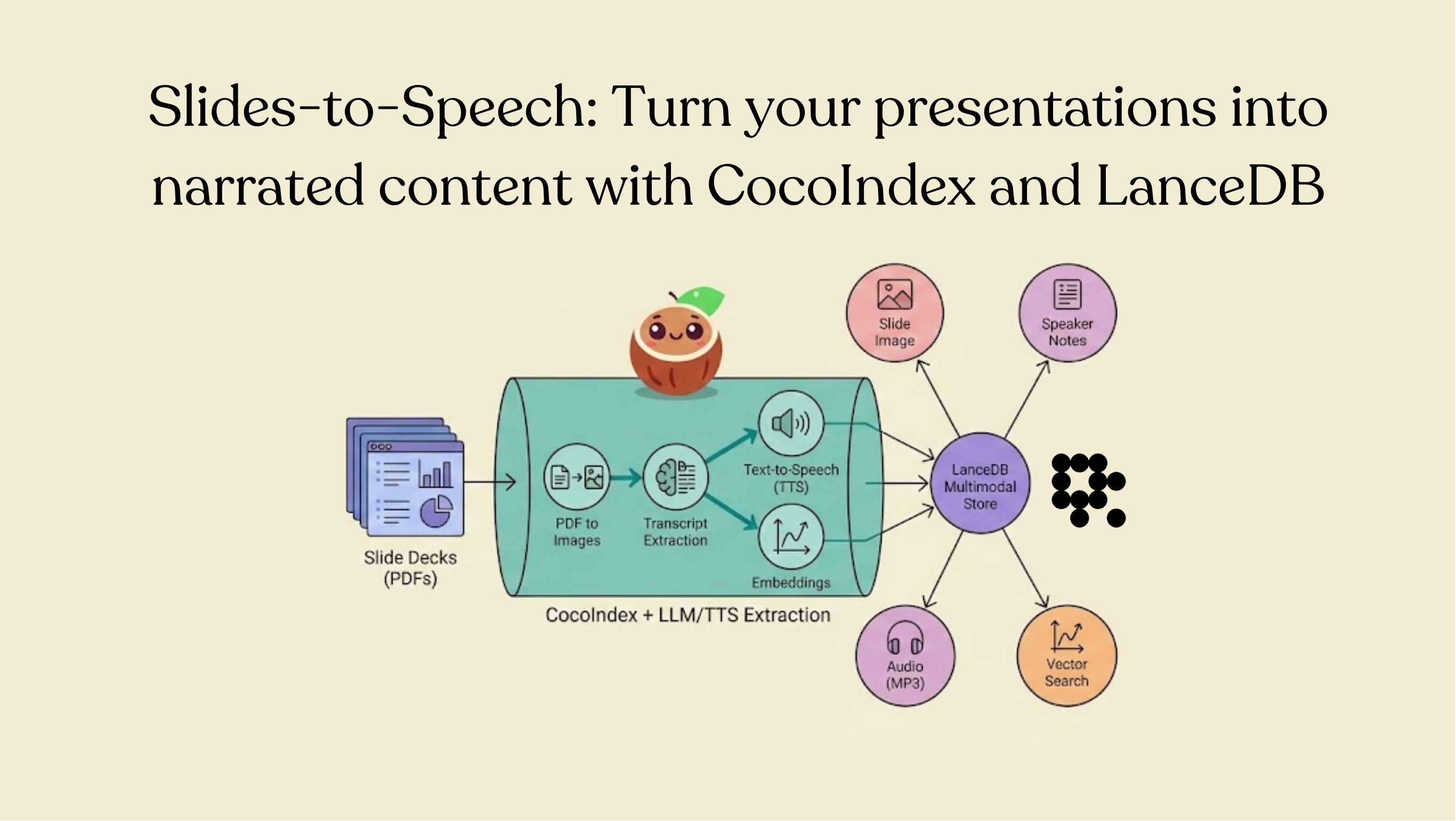
Most organizations already have a knowledge base—it's just that a large portion of it is trapped in slide decks. Quarterly updates, onboarding and training, technical specs, sales enablement, incident reviews: it all lives in Drive folders, gets revised constantly, and is hard to consume at scale in its static form.
Turning those presentations into audio (and keeping that audio synced with the slide decks as they evolve) unlocks a few practical wins:
- Listen to any slide deck instead of reading every slide (useful for review and accessibility).
- Extract structured speaker notes/transcripts automatically from each slide.
- Search across slide content semantically, not just by filename.
- Keep everything fresh as new slides appear or existing decks change.
- Reuse the same foundation for video generation, so narration stays in sync as the slides change.
In this post, you'll build a reference Slides-to-Speech pipeline in CocoIndex that watches a Drive folder for new/updated slide PDFs, extracts structured speaker notes from each slide, synthesizes narration, and stores everything in LanceDB so you can retrieve the most relevant slides instantly.
Demo
Introducing CocoIndex
CocoIndex is an ultra-performant data transformation framework for AI workloads—think “React for data processing.” You declare state transformations, and CocoIndex handles the infrastructure: it continuously processes data from sources, recomputes only what’s necessary, and applies minimal updates downstream for end-to-end freshness. As AI systems become increasingly autonomous, the bottleneck is no longer model capability—it’s keeping context fresh and relevant.
CocoIndex follows an incremental update philosophy:
- New slide decks appear in Drive
- Updated files get reprocessed automatically
- Only affected rows get new embeddings and regenerated audio, if needed
Introducing LanceDB
LanceDB is a multimodal lakehouse built for the age of AI. It’s available as an embedded, developer-friendly open-source package that pairs well with CocoIndex. Under the hood, it’s powered by the Lance columnar format, designed for fast random access (great for retrieval and serving) without sacrificing scan performance (great for analytics and batch processing).
For this Slides-to-Speech pipeline, that translates into a few concrete benefits:
- Multimodal in one table: store slide images (blobs), speaker notes, MP3 audio bytes, embeddings, and metadata side-by-side as a single dataset.
- Indexes are first-class: vector search, full-text search (FTS), and secondary indexes are stored alongside your dataset, so users don’t need to recompute embeddings/indexes to query efficiently.
- Data evolution: add or refine columns over time (i.e., backfill new embeddings, quality tags, moderation fields, etc.) without touching unmodified columns.
- Local-first simplicity: run it as an embedded database with minimal operational overhead while still getting fast retrieval.
LanceDB can append/update rows as new results arrive via the CocoIndex pipeline, so you don’t have to rewrite your table (or rebuild your indexes) from scratch each time content changes.
Overview of the pipeline
All code snippets in the examples below are available here.
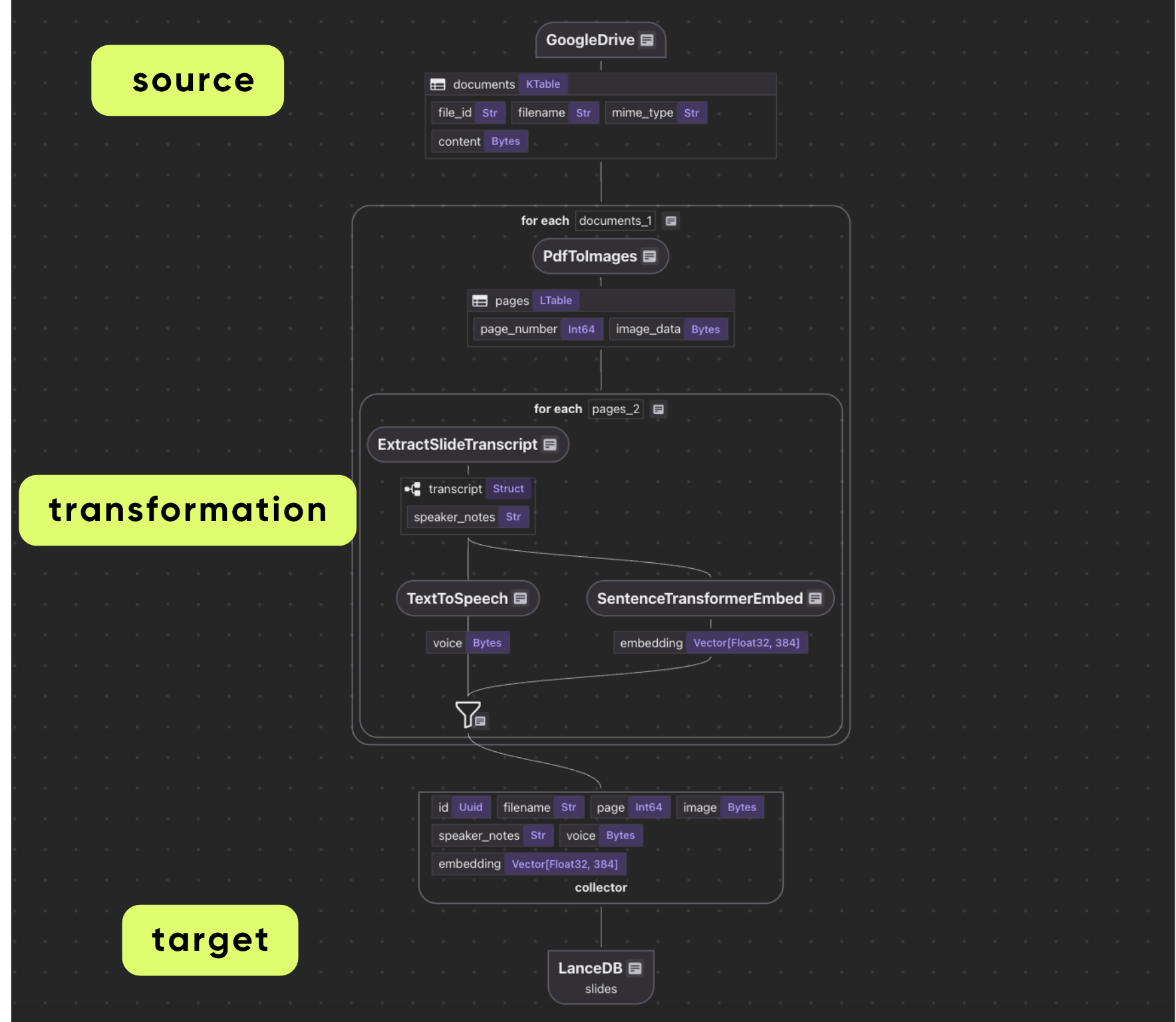
At a high level, the Slides-to-Speech flow turns slide decks into a continuously updated, searchable multimodal dataset. CocoIndex watches a Drive folder for new and modified PDFs, reprocesses only what changed, and keeps LanceDB in sync so downstream apps always query the latest version of the content.
The pipeline breaks down into the following steps:
- Ingest slide decks from Google Drive. CocoIndex monitors one or more Drive folders and reads new/updated PDF files as they appear.
- Render each PDF page as an image. The pipeline converts each page into a high-resolution PNG so it can be analyzed by a vision model.
- Extract structured speaker notes from each slide. Using BAML + Gemini Vision, the pipeline generates a
SlideTranscriptobject (speaker notes) that is ready for downstream synthesis and indexing. - Synthesize narration audio. The speaker notes are converted into MP3 bytes using a local neural text-to-speech engine (piper-tts).
- Embed the speaker notes for retrieval. The same text used for narration is embedded so you can run semantic similarity search later.
- Persist everything in LanceDB. Each slide page becomes a row containing filename, page number, the slide image, speaker notes, the MP3 audio bytes, and the embedding vector.
- Serve semantic search via a query handler. A query is embedded and used to retrieve the top matching slides, along with their associated image, text, and audio.
The result is a living, queryable multimedia knowledge base that stays up to date as slide decks evolve.
Flow declaration
We begin by defining the source portion of a CocoIndex flow, which watches a Drive folder for relevant slide files and makes them available to downstream transformations.
@cocoindex.flow_def(name="SlidesToSpeech")
def slides_to_speech_flow(
    flow_builder: cocoindex.FlowBuilder, data_scope: cocoindex.DataScope
) -> None:

    # Set up Google Drive source
    credential_path = os.environ["GOOGLE_SERVICE_ACCOUNT_CREDENTIAL"]
    root_folder_ids = os.environ["GOOGLE_DRIVE_ROOT_FOLDER_IDS"].split(",")

    data_scope["documents"] = flow_builder.add_source(
        cocoindex.sources.GoogleDrive(
            service_account_credential_path=credential_path,
            root_folder_ids=root_folder_ids,
            binary=True,
        ),
        refresh_interval=datetime.timedelta(minutes=1),
    )

    # Create collector for slide data
    slides_output = data_scope.add_collector()
The returned source handle is stored in the data scope as data_scope["documents"]. This makes the source data accessible within the flow when you define downstream transformations (for example, splitting slides into pages, transcript extraction, text-to-speech, and embeddings).
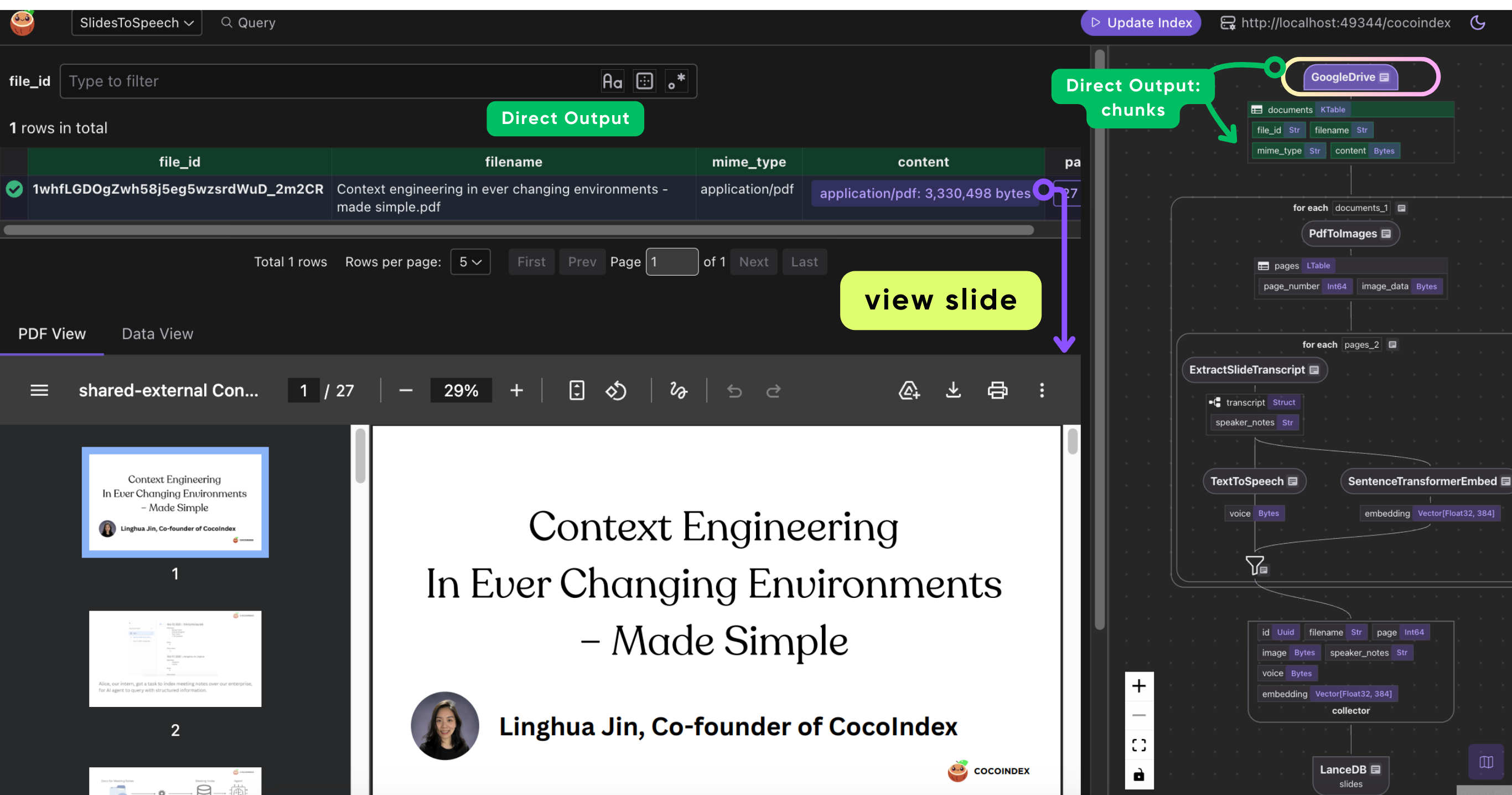
Process each document
In this section, we'll show how each document is processed in the text-to-speech pipeline.
Convert slides to images
The first step is to convert each slide in the PDF into an image so it can be processed by a vision model during transcript extraction. Define a SlidePage class that contains the image bytes and the page number.
@dataclass
class SlidePage:
    page_number: int
    image_data: bytes
Next, define a CocoIndex function that takes in a PDF file in memory and returns a list of SlidePage objects:
@cocoindex.op.function()
def pdf_to_images(content: bytes, mime_type: str) -> list[SlidePage]:
    """
    Convert each page of a PDF to an image using pymupdf.
    """
    result: list[SlidePage] = []
    if mime_type != "application/pdf":
        return result

    # Open PDF from bytes
    pdf_doc = pymupdf.open(stream=content, filetype="pdf")

    for page_num, page in enumerate(pdf_doc):
        # Render page to pixmap (image) at 2x resolution for better quality
        pix = page.get_pixmap(matrix=pymupdf.Matrix(2, 2))
        # Convert to PNG bytes
        img_bytes = pix.tobytes("png")

        result.append(SlidePage(page_number=page_num + 1, image_data=img_bytes))

    pdf_doc.close()
    return result
The function pdf_to_images renders each page of an input PDF into a PNG image using PyMuPDF. It validates the MIME type, opens the document from in-memory bytes, and iterates through pages to render each one at 2× scale for better downstream vision quality. Each rendered page is encoded as PNG bytes and packaged into a SlidePage record with the page number and image payload. The function returns the list of SlidePage objects and acts as the pipeline's initial page-level conversion step.
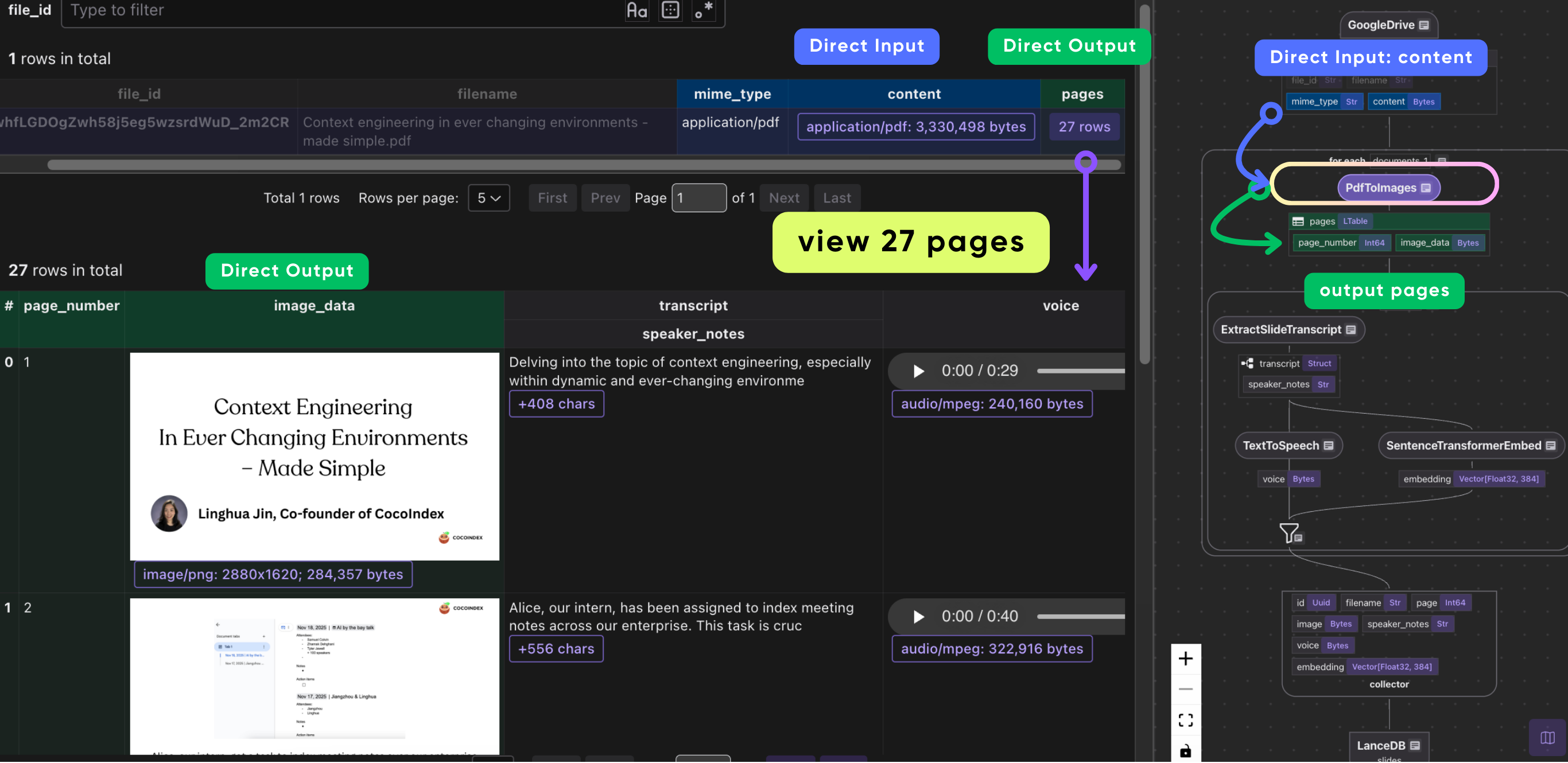
The following line shows how to convert the PDF to images (one per page) in a CocoIndex flow:
with data_scope["documents"].row() as doc:
    # Convert PDF to images (one per page)
    doc["pages"] = flow_builder.transform(pdf_to_images, doc["content"], doc["mime_type"])
Process each page
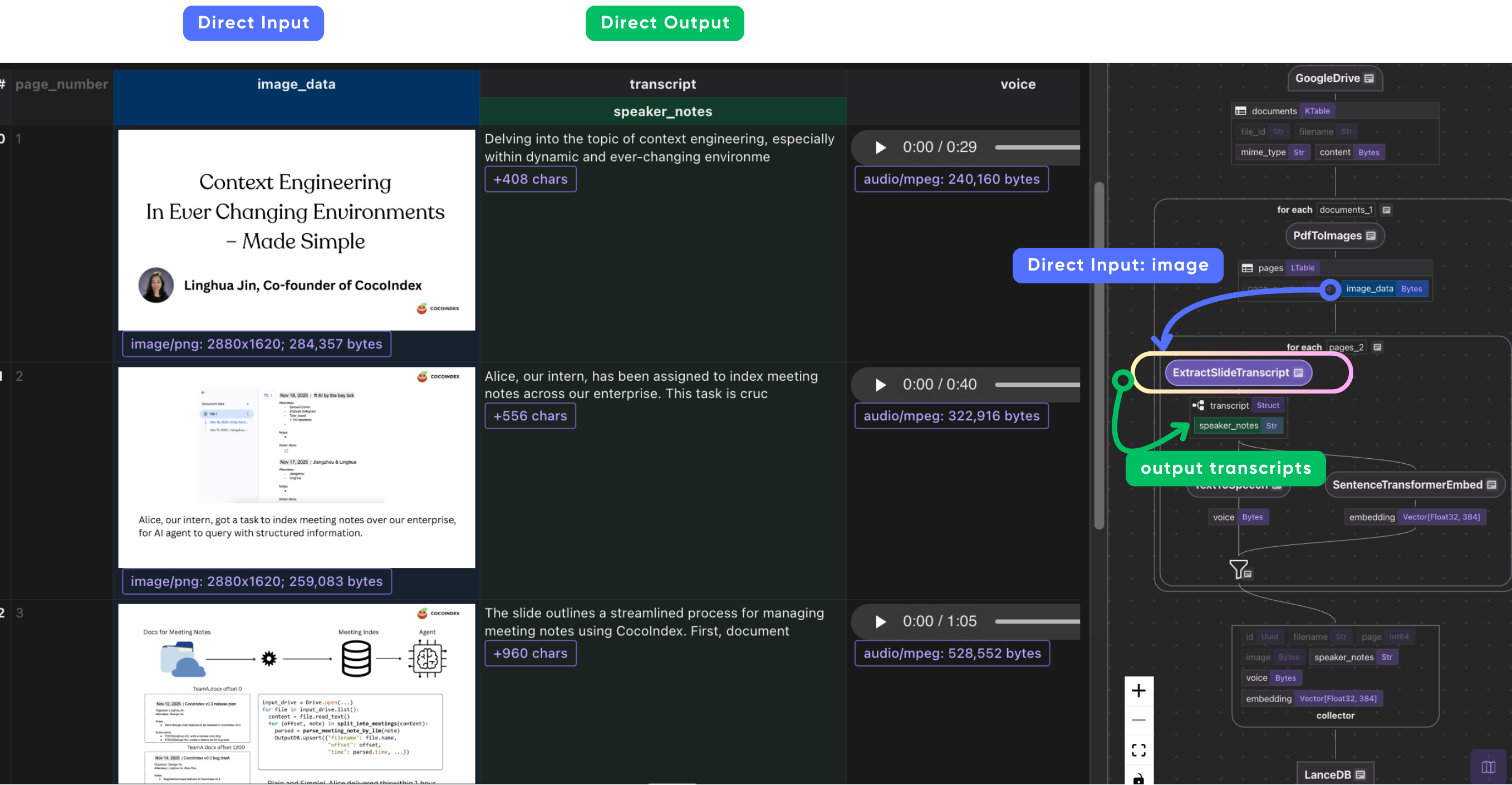
Extract a transcript from each slide image
We use BAML to extract a transcript from each slide image. In the baml_src folder, define a BAML schema for transcript extraction.
// BAML Schema for Slide Transcript Extraction
class SlideTranscript {
  speaker_notes string @description(#"
    Suggested speaker notes or narrative for the slide
    "#)
}

// BAML function that calls the LLM
function ExtractSlideTranscript(slide_image: image) -> SlideTranscript {
  client Gemini
  prompt #"
    You are analyzing a presentation slide image to create natural speaker notes for text-to-speech.

    Analyze the slide and generate speaker notes that:
    - Go straight to the topic without any greetings, introductions, or filler phrases
    - Do NOT start with phrases like "Good morning", "Hello", "Welcome", "Today we'll discuss", etc.
    - Begin immediately with the actual content
    - Combine all textual content, bullet points, and visual elements into a natural narrative
    - Use a conversational speaking tone while remaining focused and concise
    - Present the information in a logical flow suitable for audio narration

    CRITICAL: You MUST respond with valid JSON only. Do not include any explanatory text before or after the JSON.

    {{ _.role("user") }}
    {{ slide_image }}

    {{ ctx.output_format }}
  "#
}
We specify a Gemini language model client and a prompt template as shown above in BAML. The special variable {{ slide_image }} injects the slide image bytes into the prompt, and {{ ctx.output_format }} tells the LLM to produce the structured output format defined by the return type SlideTranscript. The prompt instructs the Gemini model to generate natural-sounding speaker notes in a concise, conversational narrative, and BAML's parser ensures that the function outputs valid JSON.
You can configure the LLM client in BAML to use any Gemini model of choice from Google’s API as follows:
client<llm> Gemini {
  provider google-ai
  options {
    model gemini-2.5-flash
    api_key env.GEMINI_API_KEY
  }
}
Declare a CocoIndex function that uses the BAML extractor
We can now call the BAML function from CocoIndex. To do this, wrap it in a CocoIndex operation and invoke it from the flow.
@cocoindex.op.function(cache=True, behavior_version=1)
async def extract_slide_transcript(image_data: bytes) -> SlideTranscript:
    """
    Extract transcript from a slide image using BAML.
    """
    image = baml_py.Image.from_base64(
        "image/png", base64.b64encode(image_data).decode("utf-8")
    )
    return await b.ExtractSlideTranscript(image)
The following snippet tells CocoIndex to process each slide with the BAML transcript extractor and attach the result to the page row.
with doc["pages"].row() as page:
    # Extract transcript from slide image
    page["transcript"] = page["image_data"].transform(extract_slide_transcript)
It does so by iterating over each slide page in the PDF, creating a row context for that page so CocoIndex can track transformations and caching at the page level.
Text-to-speech
To generate speech from a given piece of text, we use Piper, a high-quality neural text-to-speech (TTS) engine that converts text into natural-sounding audio, running fully locally without relying on cloud APIs. Piper is available as an ONNX model via Hugging Face.
The following function prepares the Piper TTS engine so that text from any given slide’s speaker notes can be efficiently synthesized into audio.
@functools.cache
def get_piper_voice() -> PiperVoice:
    """
    Load and cache the Piper voice model.
    This ensures the model is only loaded once across all invocations.

    Uses PIPER_MODEL_NAME environment variable (defaults to 'en_US-lessac-medium').
    """
    model_name = os.environ.get("PIPER_MODEL_NAME", "en_US-lessac-medium")
    model_path = f"{model_name}.onnx"

    if not Path(model_path).exists():
        raise FileNotFoundError(
            f"Piper model not found at {model_path}. "
            f"Please download it using: python3 -m piper.download_voices {model_name}"
        )

    return PiperVoice.load(model_path)
The function loads and caches a Piper voice model via @functools.cache so the model is initialized only once per process. This ensures that subsequent calls reuse the same loaded model, saving memory and avoiding repeated expensive model loads.
Next, define a CocoIndex function that converts input text into MP3 bytes (using pydub to encode the synthesized audio).
@cocoindex.op.function(cache=True, behavior_version=1)
def text_to_speech(text: str) -> bytes:
    """
    Convert text to speech audio using piper-tts.
    Returns audio data as bytes (MP3 format).
    """
    # Get the cached Piper voice model
    voice = get_piper_voice()

    # Synthesize speech - collect audio chunks from iterator
    chunks = list(voice.synthesize(text))

    # Combine all audio chunks
    pcm_bytes = b"".join(chunk.audio_int16_bytes for chunk in chunks)

    # Convert PCM to MP3 using pydub
    # Get audio parameters from first chunk
    first_chunk = chunks[0]
    audio = AudioSegment(
        data=pcm_bytes,
        sample_width=first_chunk.sample_width,
        frame_rate=first_chunk.sample_rate,
        channels=first_chunk.sample_channels,
    )
    mp3_data = io.BytesIO()
    audio.export(mp3_data, format="mp3", bitrate="64k")

    return mp3_data.getvalue()
The above steps do the following:
- Load the Piper voice model once (cached).
- Generate speech in small audio chunks and combine them into one larger chunk.
- Convert the combined audio into MP3 format.
- Return the MP3 as bytes that can be saved or played.
Now that the function is defined, it’s straightforward to plug it into a CocoIndex flow:
# Process each page
page["voice"] = page["transcript"]["speaker_notes"].transform(text_to_speech)
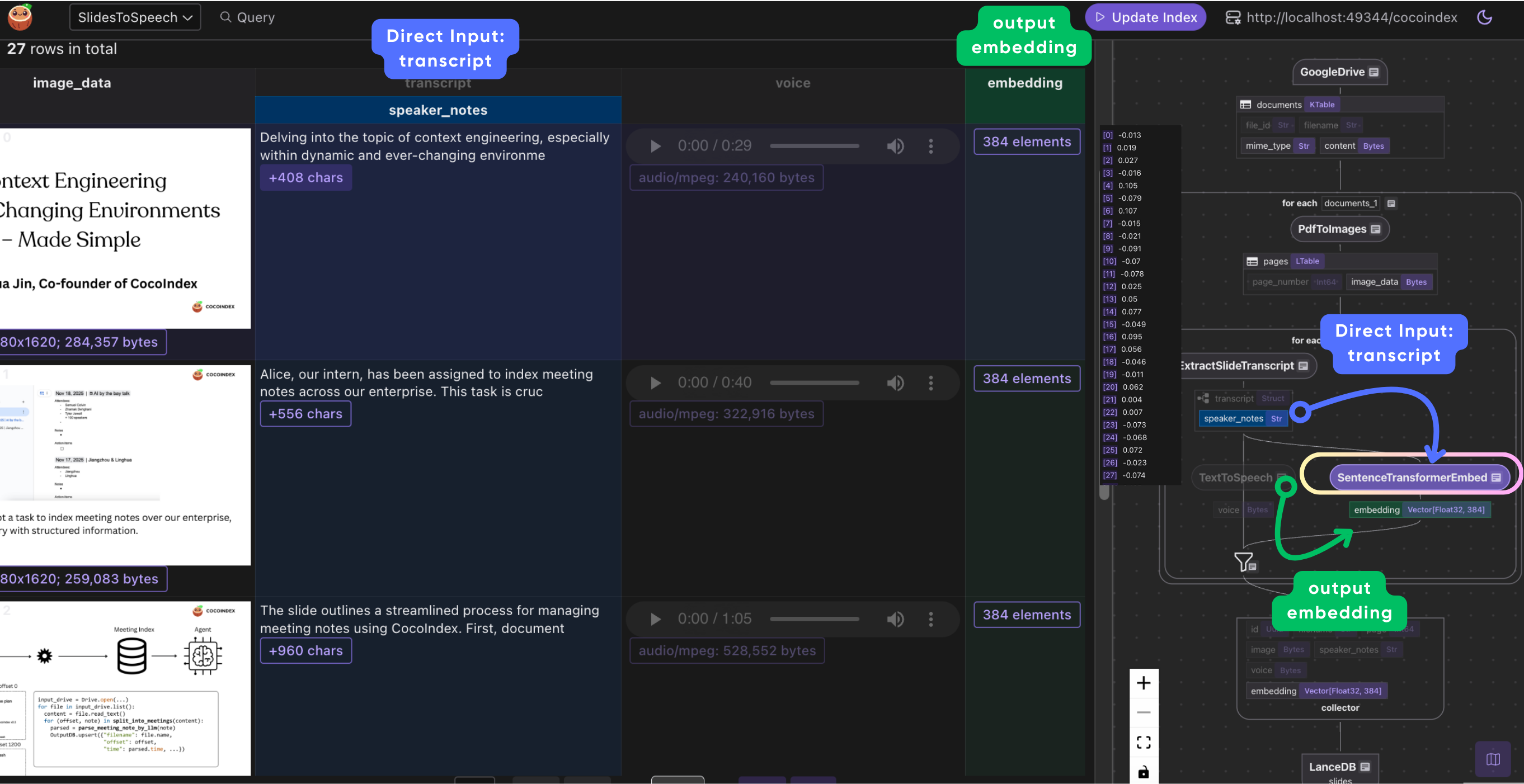
We also add another step in the flow to convert the speaker notes into embeddings.
# Embed speaker notes
page["embedding"] = text_to_embedding(page["transcript"]["speaker_notes"])
Embeddings provide the ability to perform semantic search and similarity comparisons. Instead of just matching exact words, embeddings capture the meaning of the text, so you can later ask questions like the following:
- “Show me slides about revenue”
- “Find slides explaining Kubernetes autoscaling”
You get relevant pages even if the query's words don't exactly match the words used in the content.
Collecting the results
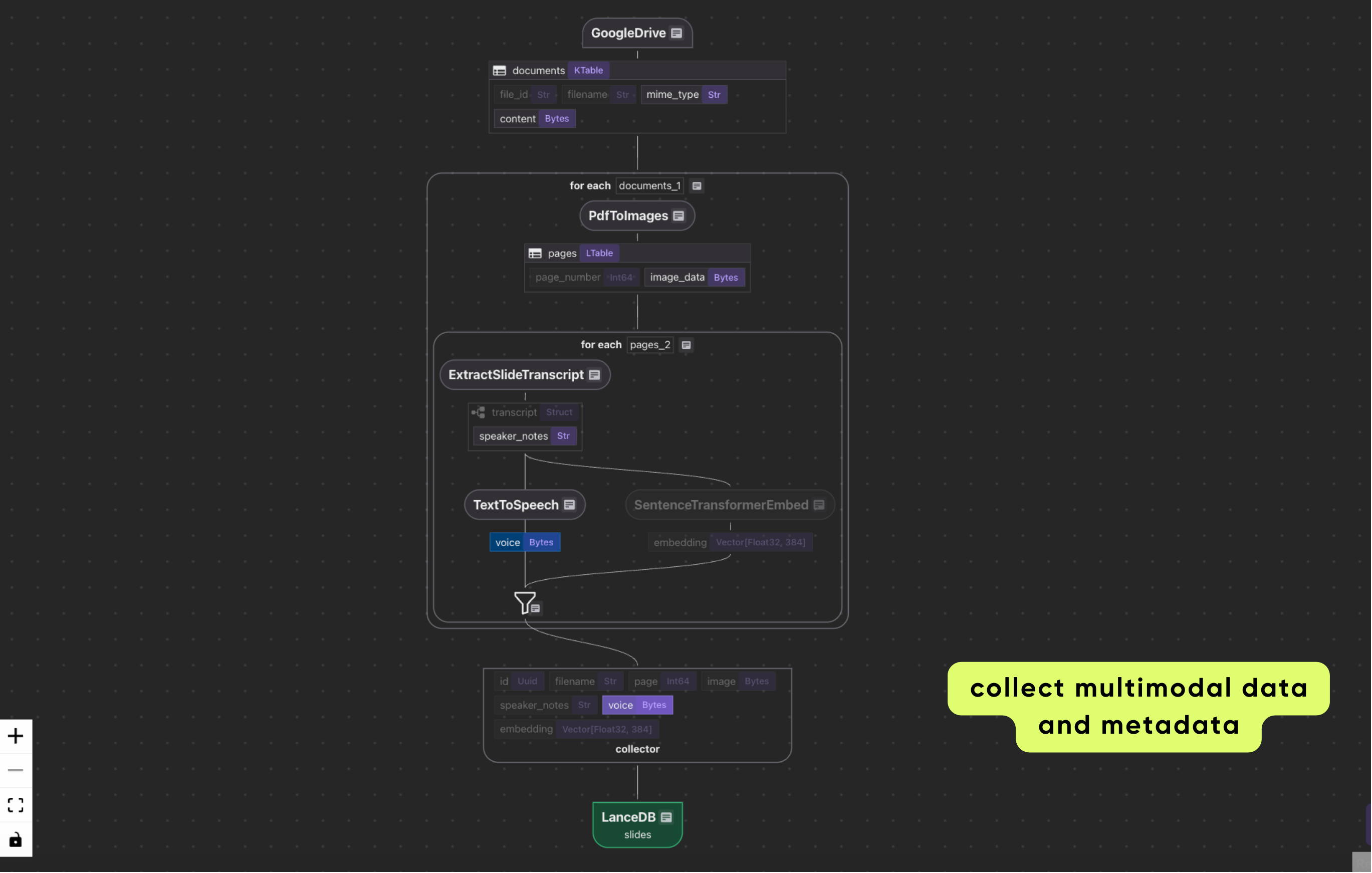
The collector object slides_output is used to gather all the transformed data into a single output record per slide page:
# Collect the results
slides_output.collect(
    id=cocoindex.GeneratedField.UUID,
    filename=doc["filename"],
    page=page["page_number"],
    image=page["image_data"],
    speaker_notes=page["transcript"]["speaker_notes"],
    voice=page["voice"],
    embedding=page["embedding"],
)
- Each field in the collector stores a valuable piece of information:
id: a unique identifier generated automaticallyfilename: the original PDF file namepage: slide numberimage: PNG bytes of the slidespeaker_notes: the extracted transcriptvoice: MP3 audio bytes of the spoken notesembedding: vector representing the speaker notes for semantic search
Export to LanceDB
The final step in the flow is to export the data to LanceDB. CocoIndex manages the underlying schema of the LanceDB table and converts Python types into PyArrow types (which is what Lance tables use under the hood).
slides_output.export(
    "slides",
    coco_lancedb.LanceDB(
        db_uri=os.environ.get("LANCEDB_URI", "./lancedb_data"),
        table_name=LANCEDB_TABLE,
    ),
    primary_key_fields=["id"],
)
Each collected row in our Slides-to-Speech pipeline becomes a row in a LanceDB table. LanceDB stores multimodal data (text, image, audio) natively, alongside embeddings, in an efficient columnar format. The embeddings enable fast similarity search, while metadata like filename and page allow filtering to narrow search results.
Query LanceDB
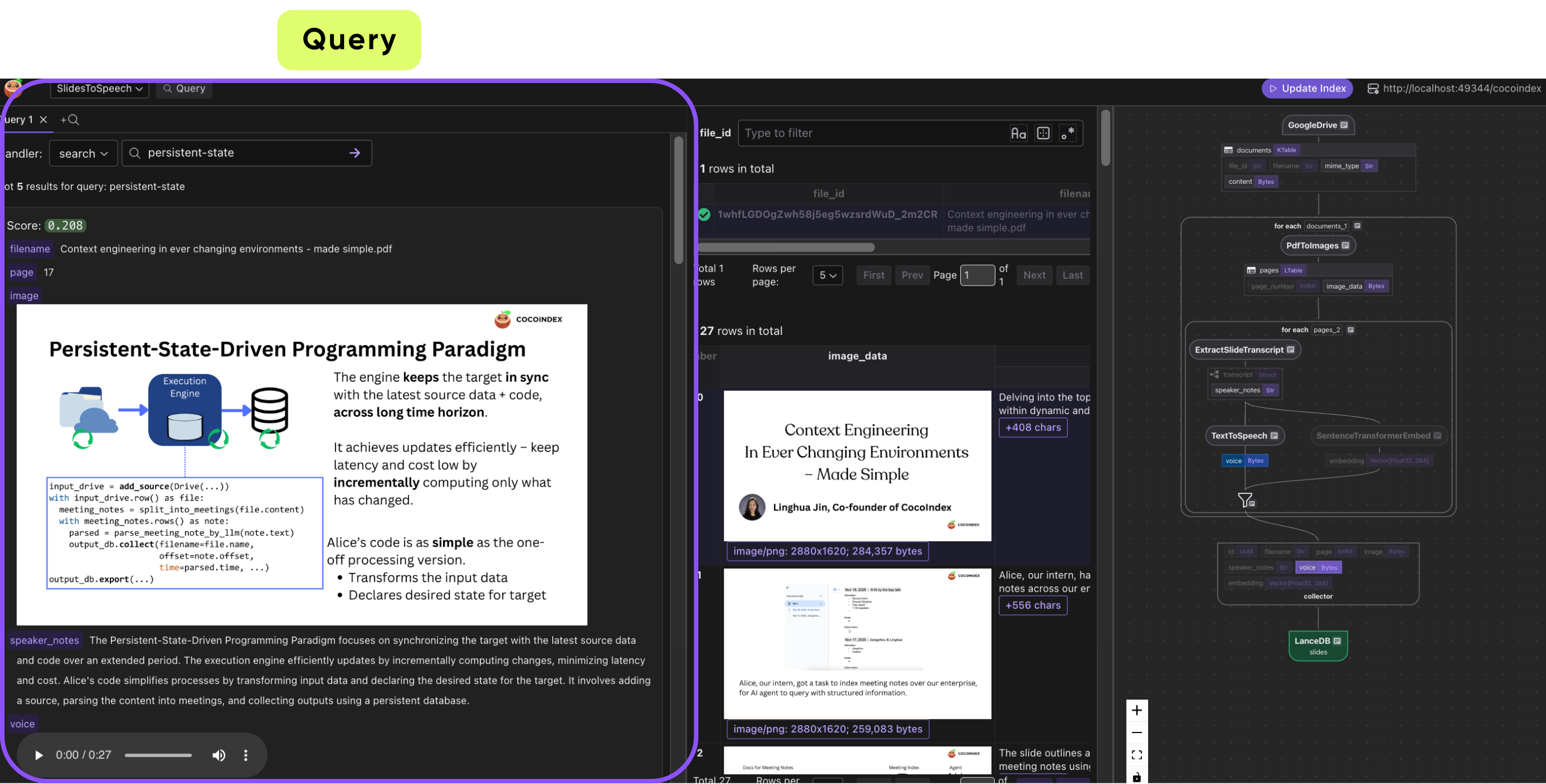
The search query handler enables semantic search over the Slides-to-Speech pipeline by converting a text query into an embedding, comparing it to stored slide embeddings in LanceDB, and returning the most relevant slides along with their images, speaker notes, audio, and similarity scores.
@slides_to_speech_flow.query_handler(
    result_fields=cocoindex.QueryHandlerResultFields(score="score"),
)
def search(query: str, top_k: int = 5) -> cocoindex.QueryOutput:
    # Get the table name, for the export target in the flow above
    db_uri = os.environ.get("LANCEDB_URI", "./lancedb_data")

    # Evaluate the transform flow defined above with the input query, to get the embedding
    query_vector = text_to_embedding.eval(query)

    # Connect to LanceDB and run the query
    db = lancedb.connect(db_uri)
    table = db.open_table(LANCEDB_TABLE)

    # Perform vector search
    search_results = table.search(query_vector).limit(top_k).to_list()

    # Convert results to the expected format
    results = [
        {
            "filename": row["filename"],
            "page": row["page"],
            "image": row["image"],
            "speaker_notes": row["speaker_notes"],
            "voice": row["voice"],
            "score": 1.0 - row["_distance"],  # Convert distance to similarity score
        }
        for row in search_results
    ]

    return cocoindex.QueryOutput(
        results=results,
        query_info=cocoindex.QueryInfo(
            embedding=query_vector,
            similarity_metric=cocoindex.VectorSimilarityMetric.COSINE_SIMILARITY,
        ),
    )
When a user inputs a query, the handler first transforms the text into a vector embedding using the same text_to_embedding function that was used to embed slide speaker notes. This ensures that the query and slides are represented in the same semantic space, allowing the system to find slides with similar meaning rather than just matching exact words. The handler then connects to the LanceDB table where each slide page’s multimodal data—image, transcript, audio, and embedding—is stored.
Next, the handler performs a nearest-neighbor vector search in LanceDB to retrieve the top k slides most similar to the query embedding. It formats the results to include all slide data along with a similarity score derived from the distance between embeddings. Finally, it returns a QueryOutput object that contains the results and metadata about the query embedding and similarity metric. This allows downstream applications to display or play the relevant slides and provides a fast, meaning-based search experience across all processed slide decks.
For simplicity, this example defines a CocoIndex query handler, which lets us easily demo semantic search in CocoInsight.
Incremental updates in action
The real payoff of this approach is what happens after you build the pipeline: it stays correct as your slide decks change. Concretely, for the changed slide(s) CocoIndex will:
- Re-run transcript extraction (the speaker notes text changes because the slide content changed).
- Re-generate the MP3 narration (so the audio now matches the latest slide).
- Recompute embeddings (so semantic search reflects the updated content).
- Update the corresponding rows in LanceDB, keeping the image, text, audio, and vectors in sync.
For example, if a slide’s extracted speaker notes change from “We shipped feature X in Q3” to “We shipped features X and Y in Q3,” the regenerated MP3 will literally sound different. The latest version is what users hear when they press play.
The end result is exactly what you expect from a “data freshness” pipeline: if a slide changes, the next time someone queries or plays it back, they won’t get stale content because CocoIndex updates the derived fields automatically and writes the updated rows back to LanceDB.
Build a simple audio player
Once your slide pages are stored in LanceDB, you can build lightweight experiences that fetch and play audio on demand. Below is a minimal example using a small API endpoint that reads MP3 bytes from LanceDB and returns them as an audio/mpeg response.
Backend (FastAPI)
import os

import lancedb
from fastapi import FastAPI, HTTPException
from fastapi.responses import Response

app = FastAPI()

DB_URI = os.environ.get("LANCEDB_URI", "./lancedb_data")
TABLE_NAME = os.environ.get("LANCEDB_TABLE", "slides_to_speech")


def _get_row(table, slide_id: str, fields: list[str]) -> dict:
    rows = (
        table.search()
        .where(f"id = '{slide_id}'")
        .select(fields)
        .limit(1)
        .to_list()
    )
    if not rows:
        raise HTTPException(status_code=404, detail="Slide not found")
    return rows[0]


@app.get("/slides/{slide_id}/audio.mp3")
def get_slide_audio(slide_id: str) -> Response:
    db = lancedb.connect(DB_URI)
    table = db.open_table(TABLE_NAME)
    row = _get_row(table, slide_id, ["voice"])
    return Response(content=row["voice"], media_type="audio/mpeg")


@app.get("/slides/{slide_id}/image.png")
def get_slide_image(slide_id: str) -> Response:
    db = lancedb.connect(DB_URI)
    table = db.open_table(TABLE_NAME)
    row = _get_row(table, slide_id, ["image"])
    return Response(content=row["image"], media_type="image/png")
These endpoints can be plugged into a front-end UI that lets users find slides of interest via text search, then fetch and play the corresponding narration on demand.
This is the core idea behind the Slides-to-Speech pipeline: you can present the original visual artifact and text, and play an up-to-date narration track generated from the slide content—fetched directly from your multimodal store.
Bring your slides to life (and beyond)
The pipeline shown in this post is a concrete example of a broader shift: don’t think of organizational data as scalar tables and flat text. A huge amount of intelligence is locked away in richer artifacts like PDFs, images, audio, and video.
With CocoIndex + LanceDB, you have a path to turn that raw content into a living, reliable multimodal knowledge base:
- Unify multimodal content in one storage layer (images, text, audio, vectors, and metadata in the same table).
- Add structure that supports more questions (speaker notes, extracted fields, embeddings, tags, and other derived signals).
- Keep everything synchronized over time (incremental recomputation when source files change, with updated rows in LanceDB).
- Build user-facing experiences on top (semantic search, narrated slide playback, assistants, and video-generation pipelines).
Try out CocoIndex and LanceDB for your next AI project, and star them on GitHub:
- CocoIndex: https://github.com/cocoindex-io/cocoindex
- LanceDB: https://github.com/lancedb/lancedb