
I recently worked with a clothing manufacturer who wanted to simplify their invoice process. Every day they receive around 20 to 22 supplier invoices as PDFs, all stored in Azure Blob Storage.
The finance team used to open each PDF by hand and copy the details into their system. It took a lot of time, and they already had a backlog of 8,000 old invoices waiting to be processed.
My first version used n8n: read the invoices from Azure Blob Storage, pull the fields out of each PDF with an AI model, then load the results into Snowflake. It worked for a while. As the number of invoices grew, the workflow started to break, and debugging errors inside a no-code tool got harder and harder. That is when I switched to code.
I came across CocoIndex, an open-source ETL framework for transforming data for AI, with incremental processing built in. It let me build a pipeline that was reliable and easy to reason about.
This post walks through that pipeline, rewritten for CocoIndex v1. The v1 Snowflake connector is now first-class, so the custom target code from the original version is gone.
What is CocoIndex?
CocoIndex moves data from one place to another in a structured way. In technical terms that is ETL (Extract, Transform, Load), built around a declarative model: you describe the target state you want, and the engine keeps it in sync with the source.
A useful mental picture is a conveyor belt in a factory. You place raw material on one end (the PDF invoices). As the belt moves, items pass through stations that clean, format, and label the data, with an AI model acting as the inspector that reads each invoice. At the far end, the finished product is packed into boxes (your Snowflake table).
The part that matters most here: CocoIndex remembers what it has already processed. Add a new invoice tomorrow and it processes only that file, not the whole backlog again. That is incremental processing, and it is where most of the time and cost savings come from.
The pipeline
The flow reads invoice PDFs from Azure Blob Storage, converts each to text, extracts the fields with an LLM, and loads the result into Snowflake:
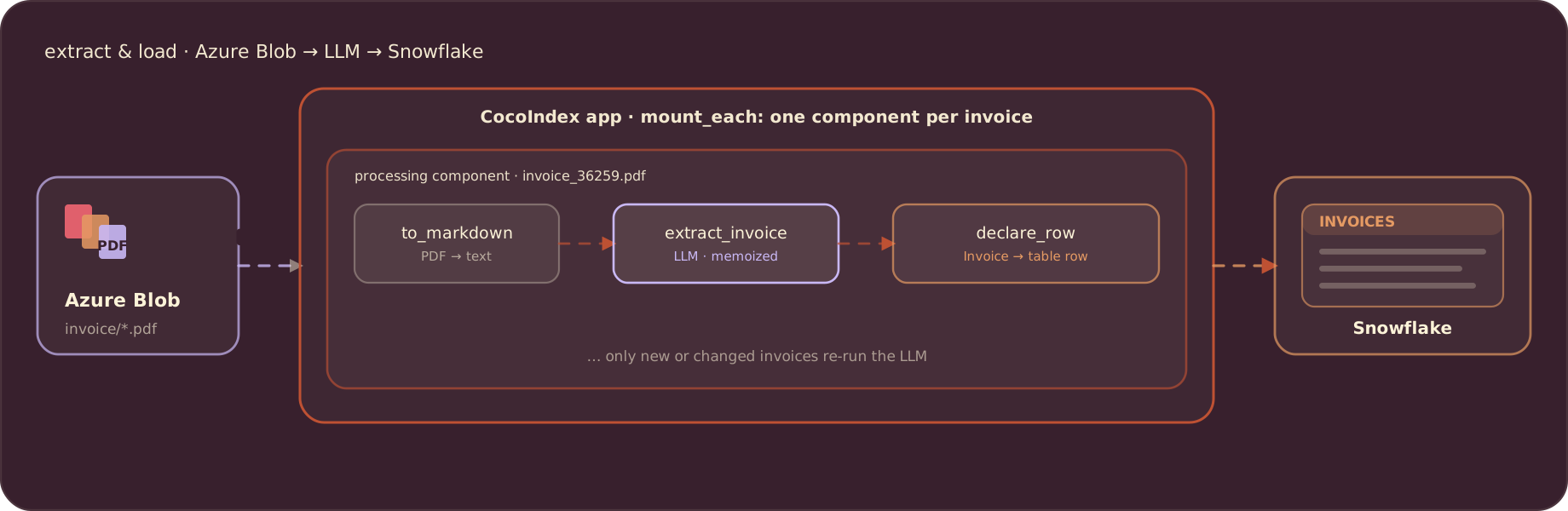
Each invoice is handled by its own processing component. A component groups one invoice’s work with the row it produces, runs in parallel with the others, and commits to Snowflake as soon as it finishes. This walkthrough covers the Extract and Load steps; the heavier Transform work can happen inside Snowflake afterward.
CocoIndex keeps its own processing state in a small local database file, so it knows which invoices it has already seen. In v1 that state lives in a db_path file you set at startup. There is no separate tracking database to run, which is one fewer moving part than the original version needed.
Set up credentials
Store the credentials for the LLM, Azure Blob Storage, and Snowflake in a .env file, out of the main code:
# LLM (any litellm model id + the matching provider key)
OPENAI_API_KEY=sk-*********************
LLM_MODEL=openai/gpt-4o

# Azure Blob
AZURE_ACCOUNT_NAME=your_account_name
AZURE_CONTAINER=invoice
AZURE_SAS_TOKEN=sv=**************************
AZURE_PREFIX=

# Snowflake
SNOWFLAKE_ACCOUNT=your_account_id
SNOWFLAKE_USER=your_username
SNOWFLAKE_PASSWORD=***************
SNOWFLAKE_WAREHOUSE=COMPUTE_WH
SNOWFLAKE_DATABASE=INVOICE
SNOWFLAKE_SCHEMA=DBO
SNOWFLAKE_TABLE=INVOICES
For local development against Azure you can also authenticate with the Azure CLI (az login) instead of a SAS token; see the Azure Blob connector docs.
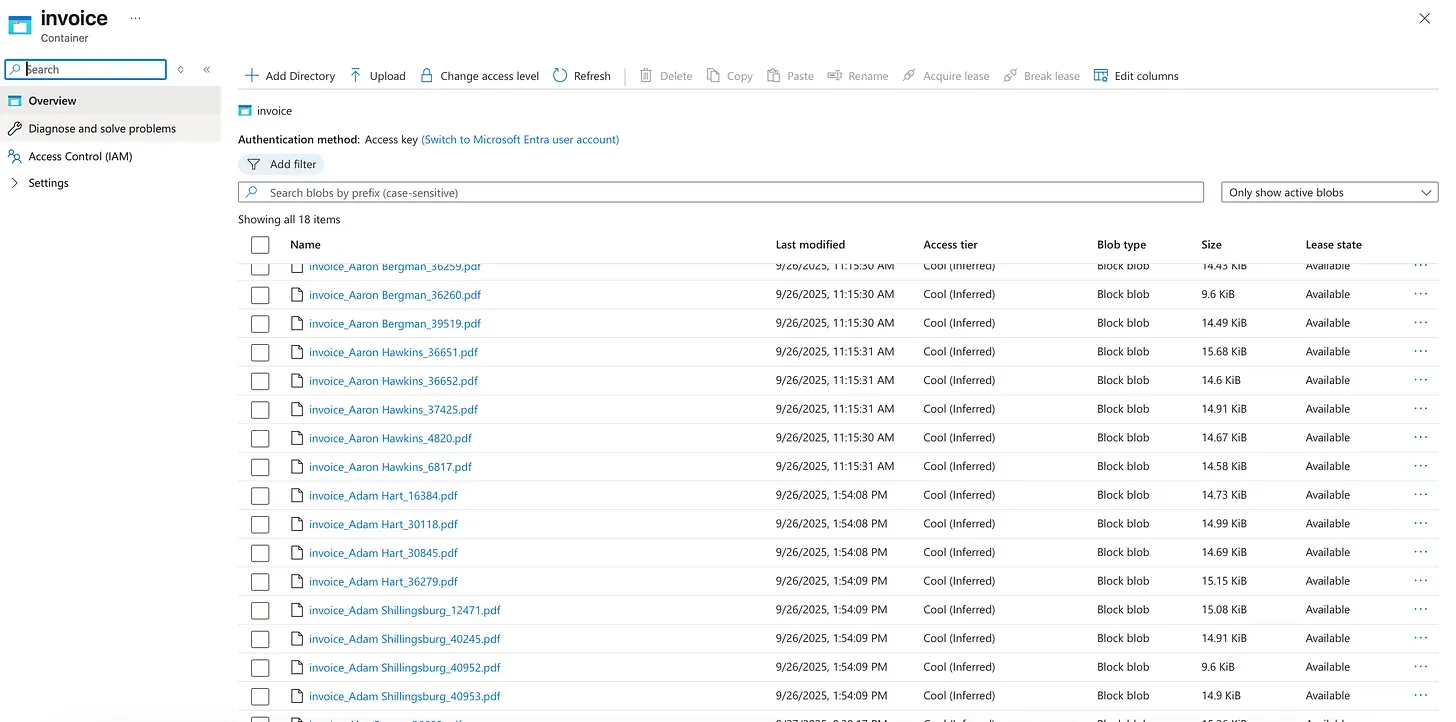
The invoice container the pipeline reads from holds the supplier PDFs, one blob per invoice:
Define the extraction schema
The fields to pull from each invoice are described once, as a Pydantic model. The field descriptions do double duty: they document the schema and they instruct the LLM on how to fill it in. This is the same idea as the original version’s docstring prompt, now expressed as typed fields.
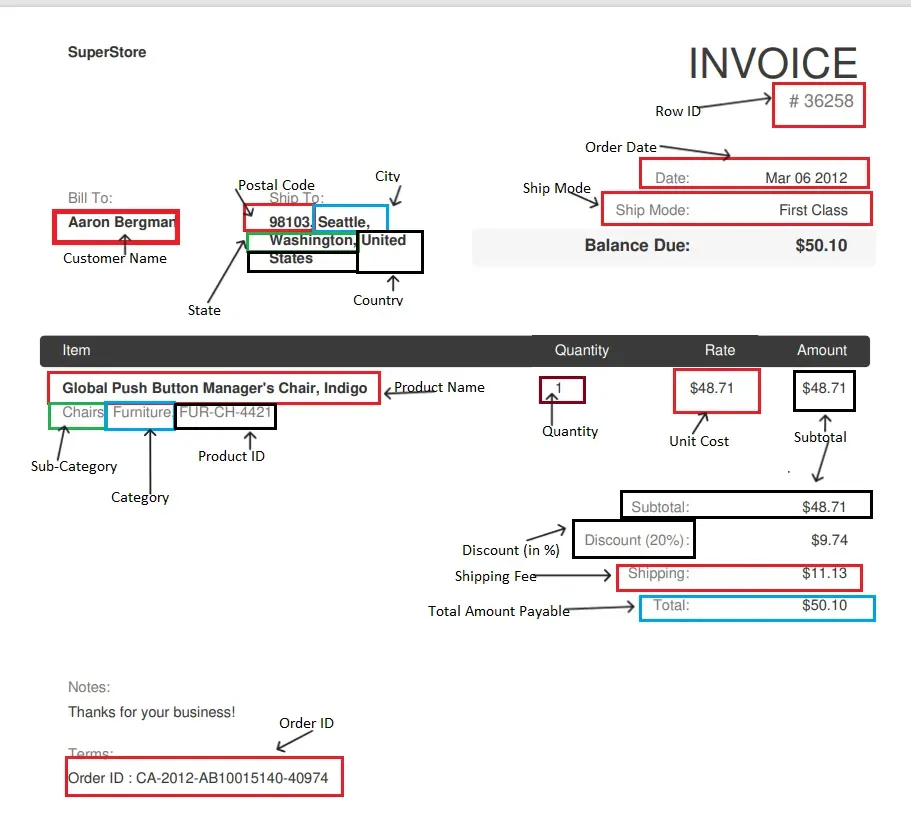
We extract the invoice header (number, date, customer, totals, and so on) plus a list of line items. Here is a real invoice from the sample set, with each captured field highlighted:
import pydantic


class LineItem(pydantic.BaseModel):
    description: str = pydantic.Field("", description="Item or product name, e.g. \"Newell 330\".")
    quantity: str = pydantic.Field("", description="Numeric quantity.")
    rate: str = pydantic.Field("", description="Unit price, numeric, no currency symbol.")
    amount: str = pydantic.Field("", description="Line total, numeric.")
    sku: str = pydantic.Field("", description="Product ID if listed, e.g. \"OFF-AR-5309\".")
    category: str = pydantic.Field("", description="Category or sub-category if listed.")


class Invoice(pydantic.BaseModel):
    invoice_number: str = pydantic.Field("", description="Invoice number, e.g. \"36259\".")
    date: str = pydantic.Field("", description="Invoice date, e.g. \"Mar 06 2012\".")
    customer_name: str = pydantic.Field("", description="Name under \"Bill To\", without the address.")
    bill_to: str = pydantic.Field("", description="Full \"Bill To\" block, including address.")
    ship_to: str = pydantic.Field("", description="Full \"Ship To\" block, including address.")
    subtotal: str = pydantic.Field("", description="Subtotal, numeric, no currency symbol.")
    discount: str = pydantic.Field("", description="Discount, numeric, no percent sign.")
    shipping: str = pydantic.Field("", description="Shipping or handling amount, numeric.")
    total: str = pydantic.Field("", description="Total amount, numeric.")
    balance_due: str = pydantic.Field("", description="Balance due, numeric.")
    order_id: str = pydantic.Field("", description="Purchase order or Order ID.")
    ship_mode: str = pydantic.Field("", description="Shipping method, e.g. \"First Class\".")
    notes: str = pydantic.Field("", description="Free-text notes.")
    terms: str = pydantic.Field("", description="Payment terms, if present.")
    line_items: list[LineItem] = pydantic.Field(default_factory=list)
The rules that used to live in the docstring (return numbers without currency symbols, use an empty string for missing fields, never swap values between fields) go into a short system prompt:
EXTRACT_PROMPT = (
    "Extract the invoice into the Invoice schema. Return numbers as plain "
    "numeric text (\"58.11\", not \"$58.11\"). Use an empty string for any "
    "field not present. Never swap values between fields. Keep line_items as "
    "a structured list."
)
Convert the PDF and extract
An LLM cannot read a raw PDF well, so each file is first converted to Markdown with MarkItDown, which keeps headings and tables in order:
import os
import tempfile
from markitdown import MarkItDown

_md = MarkItDown()


def to_markdown(content: bytes, filename: str) -> str:
    suffix = os.path.splitext(filename)[1] or ".pdf"
    with tempfile.NamedTemporaryFile(delete=True, suffix=suffix) as tmp:
        tmp.write(content)
        tmp.flush()
        return _md.convert(tmp.name).text_content or ""
Extraction is a single CocoIndex function. It calls the model through litellm and instructor, which forces the response to match the Invoice schema. memo=True caches the result, so an unchanged invoice is never sent to the model twice:
import instructor
import litellm

import cocoindex as coco

LLM_MODEL = coco.ContextKey[str]("llm_model", detect_change=True)


@coco.fn(memo=True)
async def extract_invoice(markdown: str) -> Invoice:
    client = instructor.from_litellm(litellm.acompletion, mode=instructor.Mode.JSON)
    result = await client.chat.completions.create(
        model=coco.use_context(LLM_MODEL),
        response_model=Invoice,
        messages=[
            {"role": "system", "content": EXTRACT_PROMPT},
            {"role": "user", "content": markdown},
        ],
    )
    return Invoice.model_validate(result.model_dump())
Load into Snowflake
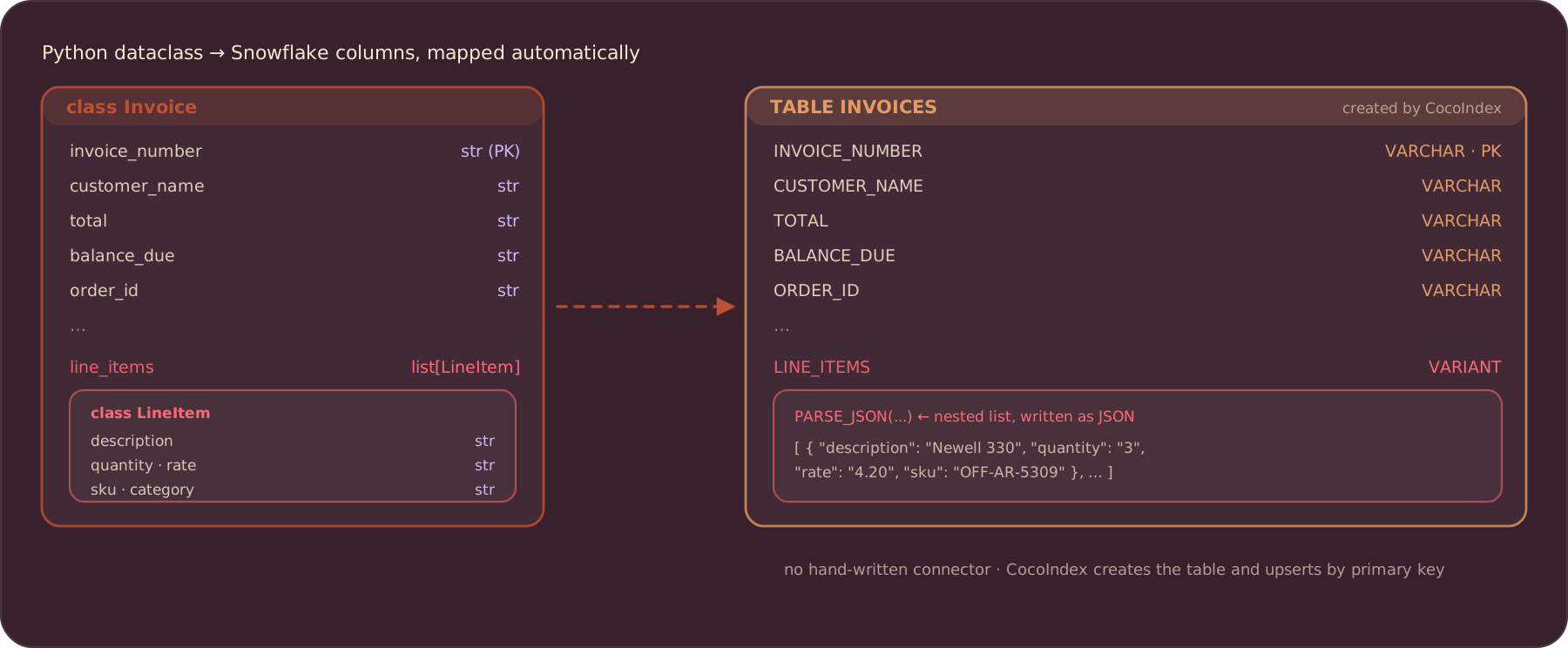
This is where v1 changes the most. The original version needed a hand-written target connector, roughly 120 lines of raw MERGE SQL, to load rows into Snowflake. In v1, Snowflake is a built-in connector: you declare the table as a Python dataclass and CocoIndex creates it, maps the types, and upserts by primary key.
Define the row you want in Snowflake as a dataclass. The line items are a nested list, which CocoIndex stores in a VARIANT column as JSON:
from dataclasses import dataclass


@dataclass
class InvoiceRow:
    invoice_number: str  # primary key
    date: str
    customer_name: str
    bill_to: str
    ship_to: str
    subtotal: str
    discount: str
    shipping: str
    total: str
    balance_due: str
    order_id: str
    ship_mode: str
    notes: str
    terms: str
    line_items: list[dict[str, object]]
    filename: str
CocoIndex maps each Python field to a Snowflake column automatically, so string fields become VARCHAR and the nested line_items list becomes a VARIANT written with PARSE_JSON:
Process each invoice
One component processes one invoice: read the PDF, convert it, extract the fields, and declare the row. declare_row states the row that should exist in Snowflake; CocoIndex works out whether that means an insert or an update:
from cocoindex.resources.file import FileLike


@coco.fn(memo=True)
async def process_invoice(
    file: FileLike[str],
    table: snowflake.TableTarget[InvoiceRow],
) -> None:
    markdown = to_markdown(await file.read(), file.file_path.path.name)
    inv = await extract_invoice(markdown)
    table.declare_row(
        row=InvoiceRow(
            invoice_number=inv.invoice_number or file.file_path.path.name,
            date=inv.date,
            customer_name=inv.customer_name,
            bill_to=inv.bill_to,
            ship_to=inv.ship_to,
            subtotal=inv.subtotal,
            discount=inv.discount,
            shipping=inv.shipping,
            total=inv.total,
            balance_due=inv.balance_due,
            order_id=inv.order_id,
            ship_mode=inv.ship_mode,
            notes=inv.notes,
            terms=inv.terms,
            line_items=[li.model_dump() for li in inv.line_items],
            filename=file.file_path.path.name,
        )
    )
The invoice number is the primary key, so re-processing the same invoice updates its row in place instead of creating a duplicate. If the number is missing, the filename stands in as a fallback key.
Wire up the app
Connections are provided once in the app lifespan and read anywhere with coco.use_context. This is also where CocoIndex’s local processing-state file is set, via builder.settings.db_path:
import os
from collections.abc import AsyncIterator
import pathlib

from azure.storage.blob.aio import ContainerClient
from cocoindex.connectors import azure_blob, snowflake

SNOWFLAKE = coco.ContextKey[snowflake.ConnectionConfig]("snowflake")
AZURE = coco.ContextKey[ContainerClient]("azure_container")


@coco.lifespan
async def coco_lifespan(builder: coco.EnvironmentBuilder) -> AsyncIterator[None]:
    builder.settings.db_path = pathlib.Path("./cocoindex.db")
    builder.provide(LLM_MODEL, os.environ.get("LLM_MODEL", "openai/gpt-4o"))
    builder.provide(
        SNOWFLAKE,
        snowflake.ConnectionConfig(
            account=os.environ["SNOWFLAKE_ACCOUNT"],
            user=os.environ["SNOWFLAKE_USER"],
            password=os.environ["SNOWFLAKE_PASSWORD"],
            warehouse=os.environ.get("SNOWFLAKE_WAREHOUSE"),
        ),
    )
    async with ContainerClient(
        account_url=f"https://{os.environ['AZURE_ACCOUNT_NAME']}.blob.core.windows.net",
        container_name=os.environ["AZURE_CONTAINER"],
        credential=os.environ["AZURE_SAS_TOKEN"],
    ) as client:
        builder.provide(AZURE, client)
        yield
app_main mounts the Snowflake table target, lists the PDFs in the container, and fans out one process_invoice component per file with mount_each:
from cocoindex.resources.file import PatternFilePathMatcher


@coco.fn
async def app_main() -> None:
    table = await snowflake.mount_table_target(
        SNOWFLAKE,
        table_name=os.environ.get("SNOWFLAKE_TABLE", "INVOICES"),
        table_schema=await snowflake.TableSchema.from_class(
            InvoiceRow, primary_key=["invoice_number"]
        ),
        database=os.environ.get("SNOWFLAKE_DATABASE"),
        schema=os.environ.get("SNOWFLAKE_SCHEMA"),
    )

    client = coco.use_context(AZURE)
    files = azure_blob.list_blobs(
        client,
        prefix=os.environ.get("AZURE_PREFIX", ""),
        path_matcher=PatternFilePathMatcher(included_patterns=["**/*.pdf"]),
    )
    await coco.mount_each(process_invoice, files.items(), table)


app = coco.App(
    coco.AppConfig(name="InvoiceExtraction"),
    app_main,
)
Run the pipeline
Install the dependencies and run the pipeline:
pip install "cocoindex[snowflake,azure_blob]" instructor litellm markitdown python-dotenv
cocoindex update main
The first run is a full load: every invoice in the container is converted, extracted, and merged into Snowflake. After that, re-running does only the new work.
This is the payoff from incremental processing. On the client project we first loaded about 8,000 old invoices, then ran the pipeline daily on the 20-odd new ones. The second run does not touch the 8,000 unchanged invoices, so it skips those LLM calls entirely:
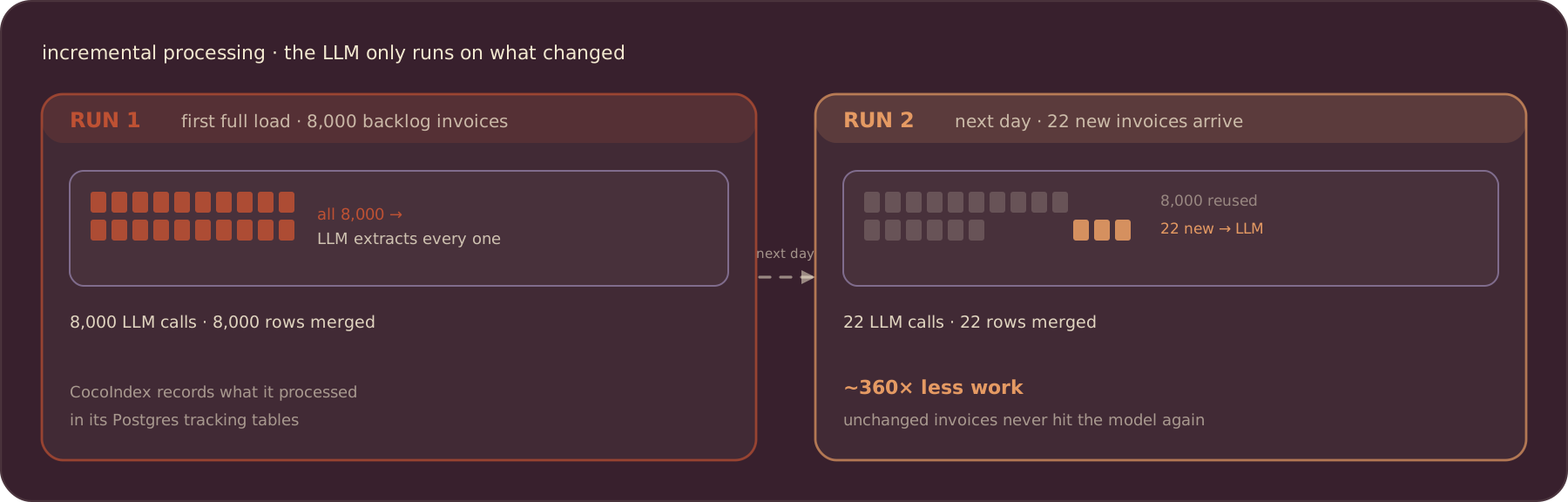
Because per-invoice extraction is memoized, the expensive model calls run only for files CocoIndex has not seen. Change the prompt or switch LLM_MODEL and the next run re-extracts to stay consistent, with no manual migration.
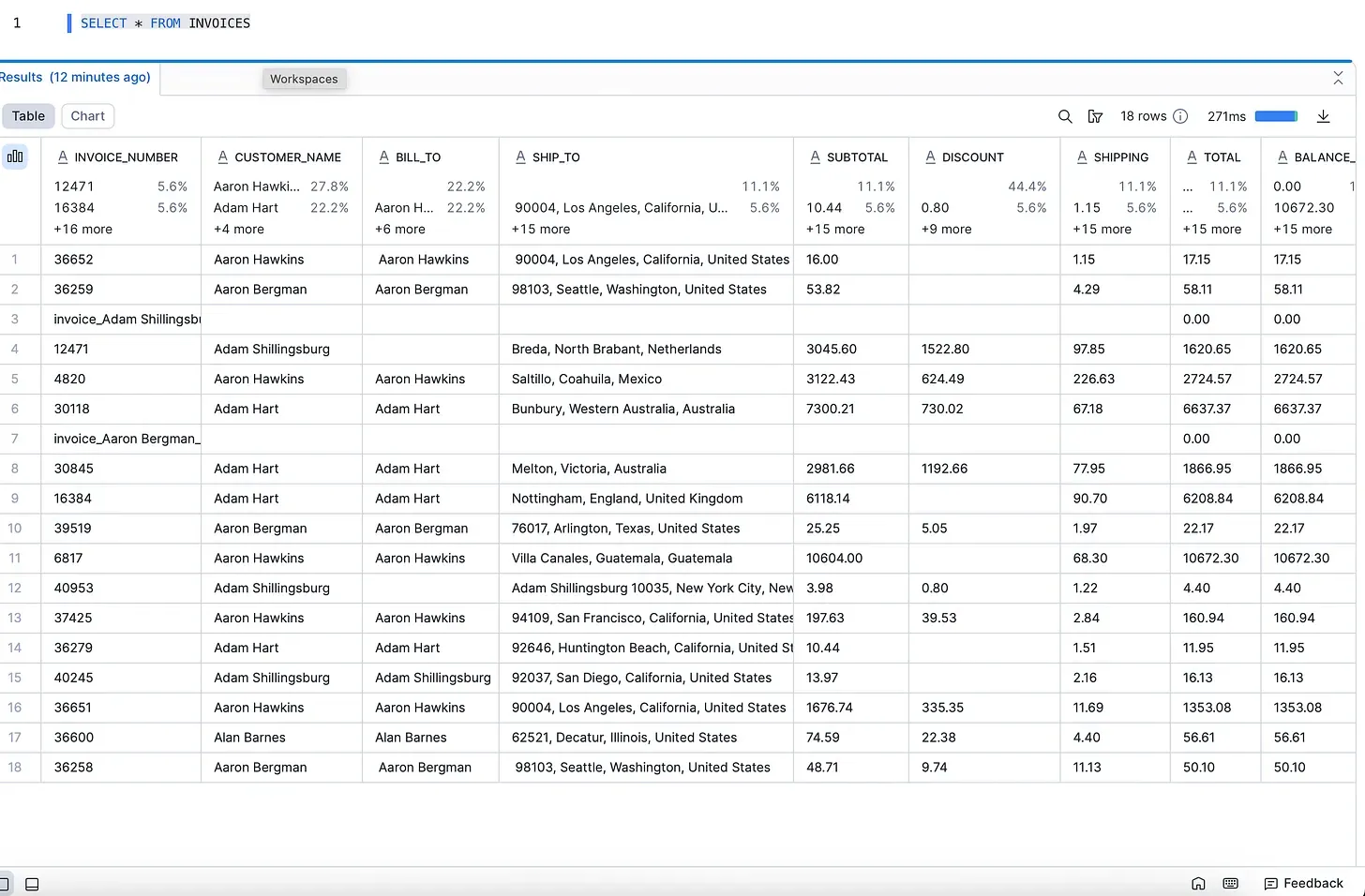
Here is the result in Snowflake after a run, one row per invoice with the line items in the VARIANT column:
Challenges
Because this uses an LLM to read invoices, it is not perfect, and evaluation is the real work. On the original client data, many fields were mismatched at first, and refining the prompt is what improved accuracy. Clean, structured PDFs are the easy case; messy or inconsistent ones can still trip the model up.
CocoIndex itself is not a parser. It is the framework and incremental engine, and you plug in whatever extraction logic fits your data. I used OpenAI here, but Google Document AI, a specialized invoice parser, or a fine-tuned model could all slot into the same extract_invoice step.
For more, see the CocoIndex documentation and the Snowflake connector guide. If it was useful, a star on GitHub helps a lot.

About the author.

Data & AI practitioner and CocoIndex community contributor.
Frequently asked questions.
How do I load PDFs, images, or audio files into Snowflake with CocoIndex?
marker), images (CLIP or ColPali), or HTTP-reachable files, then pass them through any LLM. Landing in Snowflake is now first-class: the Snowflake connector creates the table, maps Python types to columns, and MERGE-upserts by primary key, so the hand-written target connector from the original version is gone. For field-level accuracy on structured PDFs, see Patient intake form extraction.How do I auto-ingest new files from S3, Azure Blob, or GCS?
azure_blob.list_blobs, amazon_s3.list_objects, or the Google Drive source at your container and hand the files to coco.mount_each. CocoIndex fingerprints every file by content; each cocoindex update processes only what actually changed — whether you schedule with cron, Azure Functions, or GitHub Actions. The same pipeline works across clouds without wiring up per-bucket notifications. See S3 incremental ETL for the S3-specific walkthrough.CocoIndex vs. Snowflake Openflow for unstructured data — when to pick which?
How do I extract text and entities from documents — alternatives to Cortex AI Functions?
instructor with a Pydantic (or dataclass) schema, across OpenAI, Mistral, Gemini, Anthropic, Ollama, or any LiteLLM-compatible provider, and returns typed rows. The schema field descriptions double as the extraction prompt — the schema itself is the contract. Walkthroughs: Structured extraction with DSPy, with BAML, and patient intake forms. For on-prem, Ollama + CocoIndex shows the local-model path.How do I build RAG or a chatbot over my documents — without Cortex Search?
RecursiveSplitter (syntax-aware for Markdown and 20+ programming languages) → embed with SentenceTransformers or a LiteLLM-backed API model → write to Qdrant, LanceDB, Postgres + pgvector, or Apache Doris → query. The vector-store step stays decoupled from the pipeline, so you can A/B swap without touching upstream logic. See Text embeddings 101, Codebase RAG, and multi-modal ColPali.How do I generate and store embeddings for unstructured data?
SentenceTransformerEmbedder or a LiteLLM-backed model inside a processing component, then declare the vector as a column on your target row — CocoIndex handles batching and lazy model loading. Image embeddings via CLIP or ColPali's multi-vector scheme are first-class. Live image search with CLIP walks through the end-to-end.How do I process only new or changed files, Snowflake Streams-style?
(source_file, transform) pair by content and code hash. On the next cocoindex update, unchanged inputs skip the LLM call, skip the embedding call, and leave downstream rows untouched — no Streams, no Tasks, no triggers. See Incremental processing for the mechanics, and Continuous updates for how it composes with live sources.Where does CocoIndex keep its processing state?
builder.settings.db_path in the app lifespan — that is the logbook of which files were processed and what was extracted. For a Snowflake-target pipeline you don't run any separate tracking database; the local file is enough. This is one fewer moving part than the original version, which used Postgres for engine bookkeeping.How do I trace a Snowflake column back to its source document?
How do I keep LLM costs down on large-corpus pipelines?
@coco.fn(memo=True) keys on function inputs + code hash and skips redundant LLM and embedding calls, so bulk re-runs on an 8K-file backlog cost pennies after the first pass. (2) Provider routing — LiteLLM lets you send bulk work to local Ollama and reserve hosted GPT-4o for high-stakes extraction, from the same flow. Swapping the model re-runs only the affected step, not the whole corpus.