Index PDF Elements - Unified Text & Image Embedding with Metadata
PDFs contain a wealth of textual and visual elements—from narrative passages to figures, charts, and images. In this guide, you'll learn how to set up a complete pipeline that extracts, embeds, and indexes both text and images from PDFs, ensuring every element is fully linked back with original page metadata.
In this example, we split out both text and images, link them back to page metadata, and enable unified semantic search. We’ll use CocoIndex to define the flow, SentenceTransformers for text embeddings, and CLIP for image embeddings — all stored in Qdrant for retrieval.
CocoIndex supports incremental updates out of box. You can add new PDFs or update existing ones without reprocessing the entire dataset. Only new or modified elements are embedded and indexed on each run.
🔍 What It Does
This flow automatically:
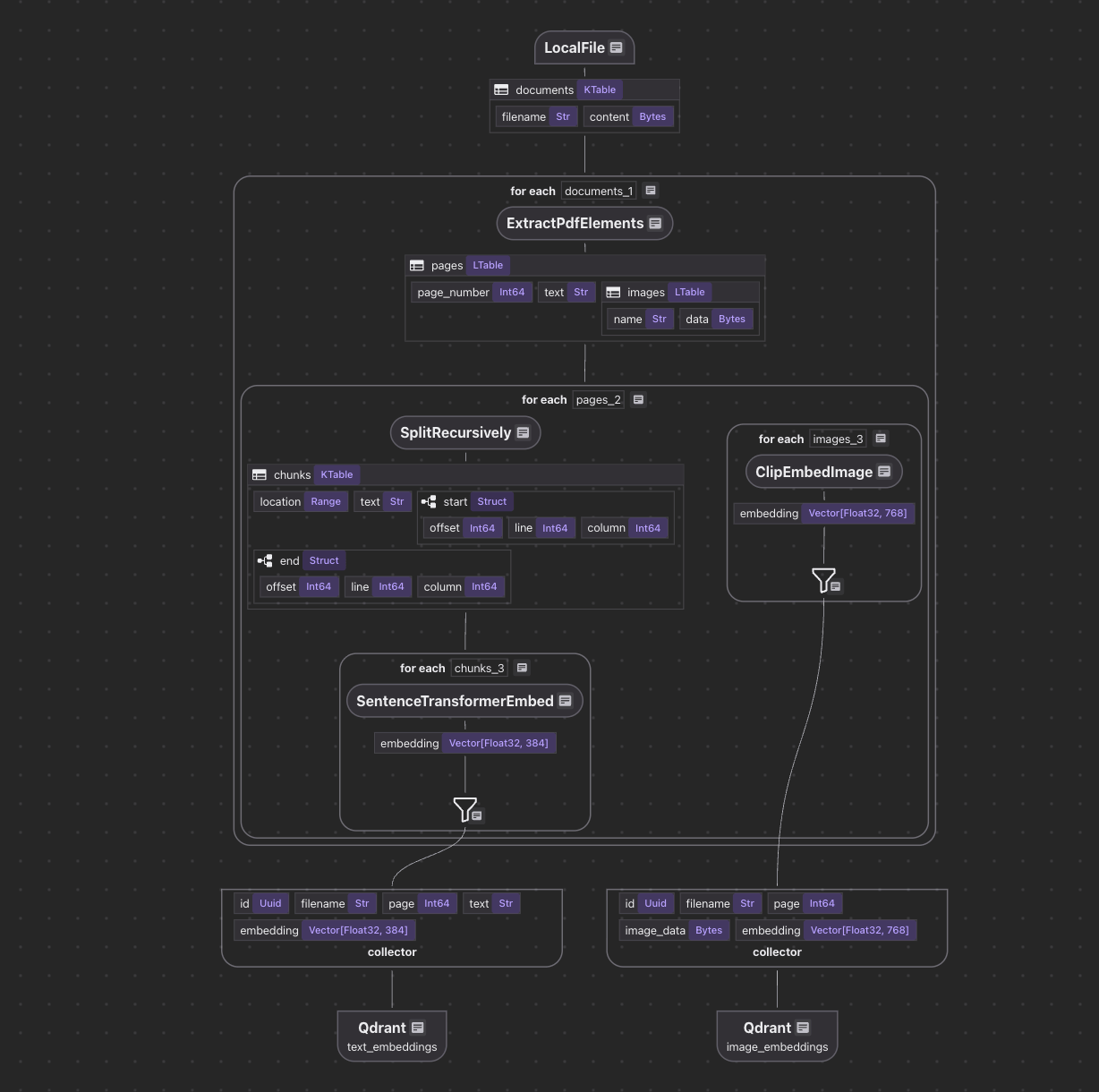
- Extracts both page text and images from PDF files
- Filters out images that are too small or duplicates
- Generates standardized thumbnails for images (up to 512×512 pixels)
- Splits and embeds text elements using SentenceTransformers (
all-MiniLM-L6-v2) - Embeds image elements using CLIP (
openai/clip-vit-large-patch14) - Saves all embeddings to Qdrant, along with metadata that traces each embedding back to its source text or image
- Enables unified semantic search across all extracted text and image content
📦 Prerequisite:
Run Qdrant
If you don’t have Qdrant running locally, start it via Docker:
docker run -p 6333:6333 -p 6334:6334 qdrant/qdrant
📁 Input Data
We’ll use a few sample PDFs (board game manuals). Download them into the source_files directory:
./pdf_elements/fetch_manual_urls.sh
Or, feel free to drop in any of your own PDFs.
⚙️ Run the Flow
Install dependencies:
pip install -e .
Then build your index (sets up tables automatically on first run):
cocoindex update --setup main
Or Run in CocoInsight
cocoindex server -ci main
Define the flow
Flow definition
Let’s break down what happens inside the PdfElementsEmbedding flow
@cocoindex.flow_def(name="PdfElementsEmbedding")
def multi_format_indexing_flow(
    flow_builder: cocoindex.FlowBuilder, data_scope: cocoindex.DataScope
) -> None:
    data_scope["documents"] = flow_builder.add_source(
        cocoindex.sources.LocalFile(
            path="source_files", included_patterns=["*.pdf"], binary=True
        )
    )
    text_output = data_scope.add_collector()
    image_output = data_scope.add_collector()
We define the flow, add a source, and add data collectors.
For flow definition, the decorator
@cocoindex.flow_def(name="PdfElementsEmbedding")
marks the function as a CocoIndex flow definition, registering it as part of the data indexing system. When executed via CocoIndex runtime, it orchestrates data ingestion, transformation, and collection.
Process Each Document
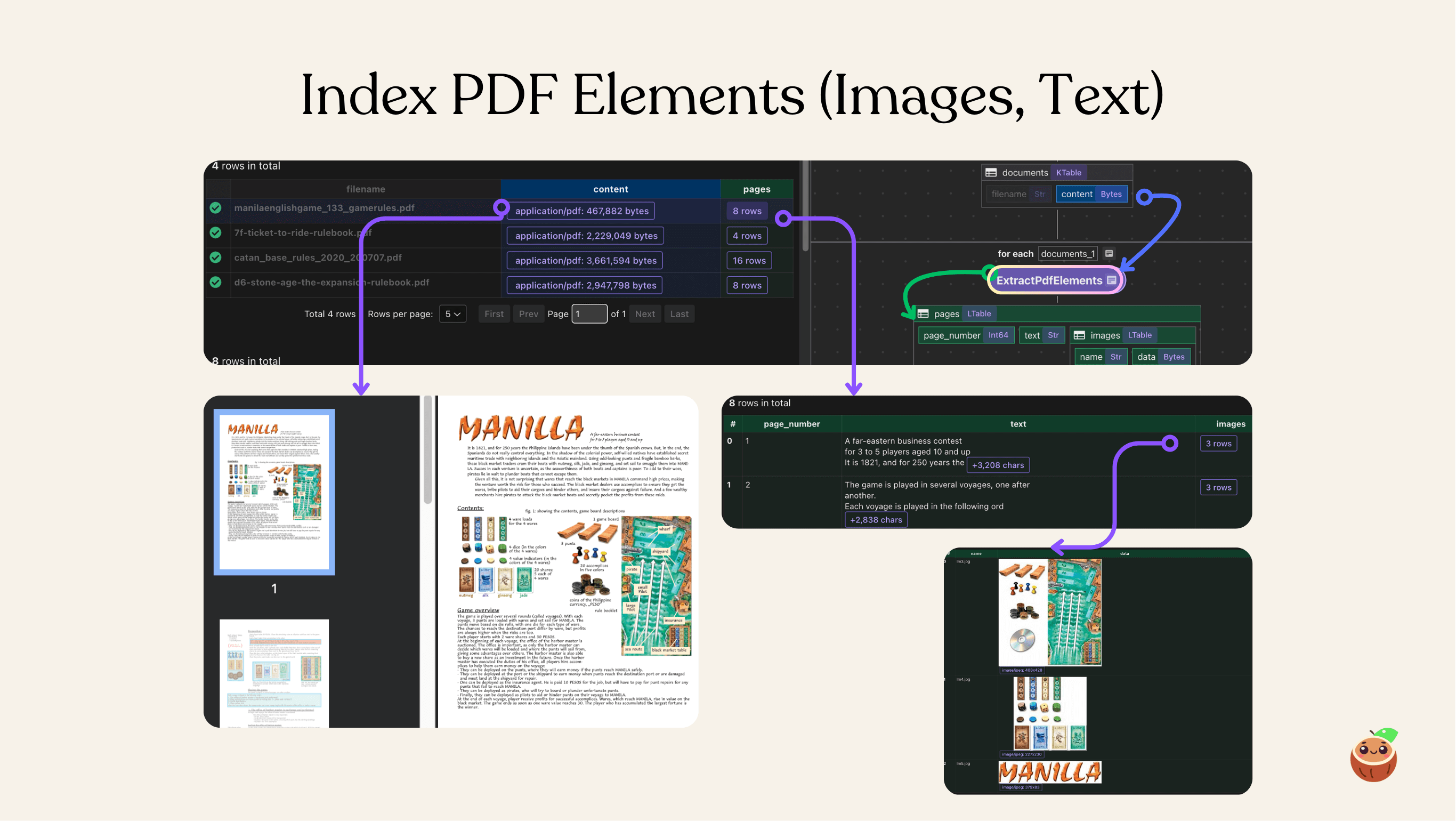
Extract PDF documents
We iterate through each document row and run a custom transformation that extracts PDF elements.
with data_scope["documents"].row() as doc:
    doc["pages"] = doc["content"].transform(extract_pdf_elements)
Extract PDF Elements
Define dataclass for structured extraction - we want to extract a list of PdfPage each has page number, text, and list of images.
@dataclass
class PdfImage:
    name: str
    data: bytes

@dataclass
class PdfPage:
    page_number: int
    text: str
    images: list[PdfImage]
Next, define a CocoIndex function called extract_pdf_elements that extracts both text and images from a PDF file, returning them as structured, page-wise data objects.
@cocoindex.op.function()
def extract_pdf_elements(content: bytes) -> list[PdfPage]:
    """
    Extract texts and images from a PDF file.
    """
    reader = PdfReader(io.BytesIO(content))
    result = []
    for i, page in enumerate(reader.pages):
        text = page.extract_text()
        images = []
        for image in page.images:
            img = image.image
            if img is None:
                continue
            # Skip very small images.
            if img.width < 16 or img.height < 16:
                continue
            thumbnail = io.BytesIO()
            img.thumbnail(IMG_THUMBNAIL_SIZE)
            img.save(thumbnail, img.format or "PNG")
            images.append(PdfImage(name=image.name, data=thumbnail.getvalue()))
        result.append(PdfPage(page_number=i + 1, text=text, images=images))
    return result
The extract_pdf_elements function reads a PDF file from bytes and extracts both text and images from each page in a structured way.
-
It parses every page to retrieve text content and any embedded images, skipping empty or very small images to avoid noise.
-
Each image is resized to a consistent thumbnail size (up to 512×512) and converted into bytes for downstream use.
The result is a clean, per-page data structure (PdfPage) that contains the page number, extracted text, and processed images — making it easy to embed and index PDFs for multimodal search.

Process Each Page
Once we have the pages, we process each page.
- Chunk the text
This takes each PDF page's text and splits it into smaller, overlapping chunks.
with doc["pages"].row() as page:
    page["chunks"] = page["text"].transform(
        cocoindex.functions.SplitRecursively(
            custom_languages=[
                cocoindex.functions.CustomLanguageSpec(
                    language_name="text",
                    separators_regex=[
                        r"\n(\s*\n)+",
                        r"[\.!\?]\s+",
                        r"\n",
                        r"\s+",
                    ],
                )
            ]
        ),
        language="text",
        chunk_size=600,
        chunk_overlap=100,
    )
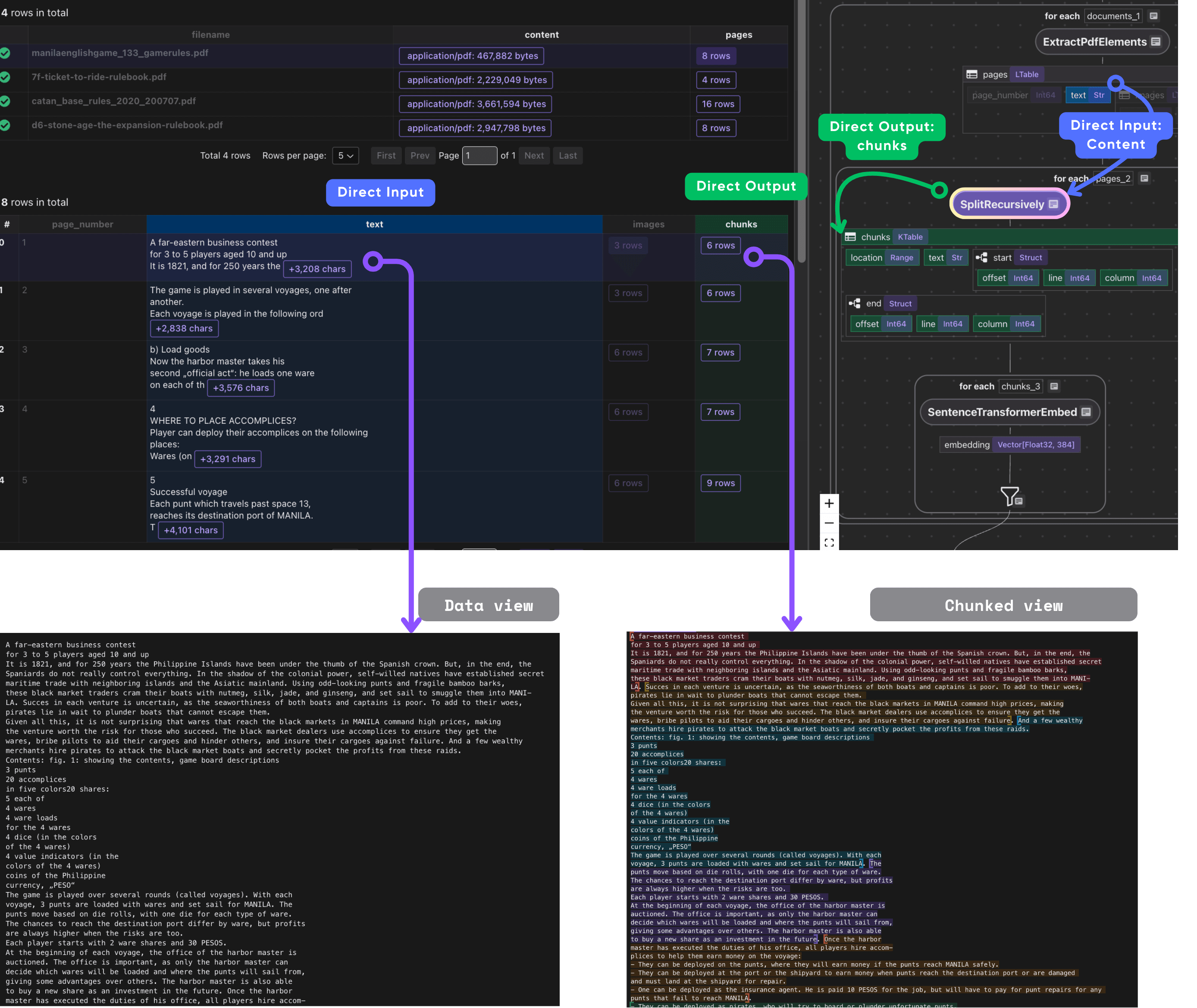
- Process each chunk
Embed and collect the metadata we need. Each chunk includes its embedding, original text, and references to the filename and page where it originated.
with page["chunks"].row() as chunk:
    chunk["embedding"] = chunk["text"].call(embed_text)
    text_output.collect(
        id=cocoindex.GeneratedField.UUID,
        filename=doc["filename"],
        page=page["page_number"],
        text=chunk["text"],
        embedding=chunk["embedding"],
    )

- Process each image
We use CLIP to embed the image and collect the data, embedding, and metadata filename, page_number.
with page["images"].row() as image:
    image["embedding"] = image["data"].transform(clip_embed_image)
    image_output.collect(
        id=cocoindex.GeneratedField.UUID,
        filename=doc["filename"],
        page=page["page_number"],
        image_data=image["data"],
        embedding=image["embedding"],
    )
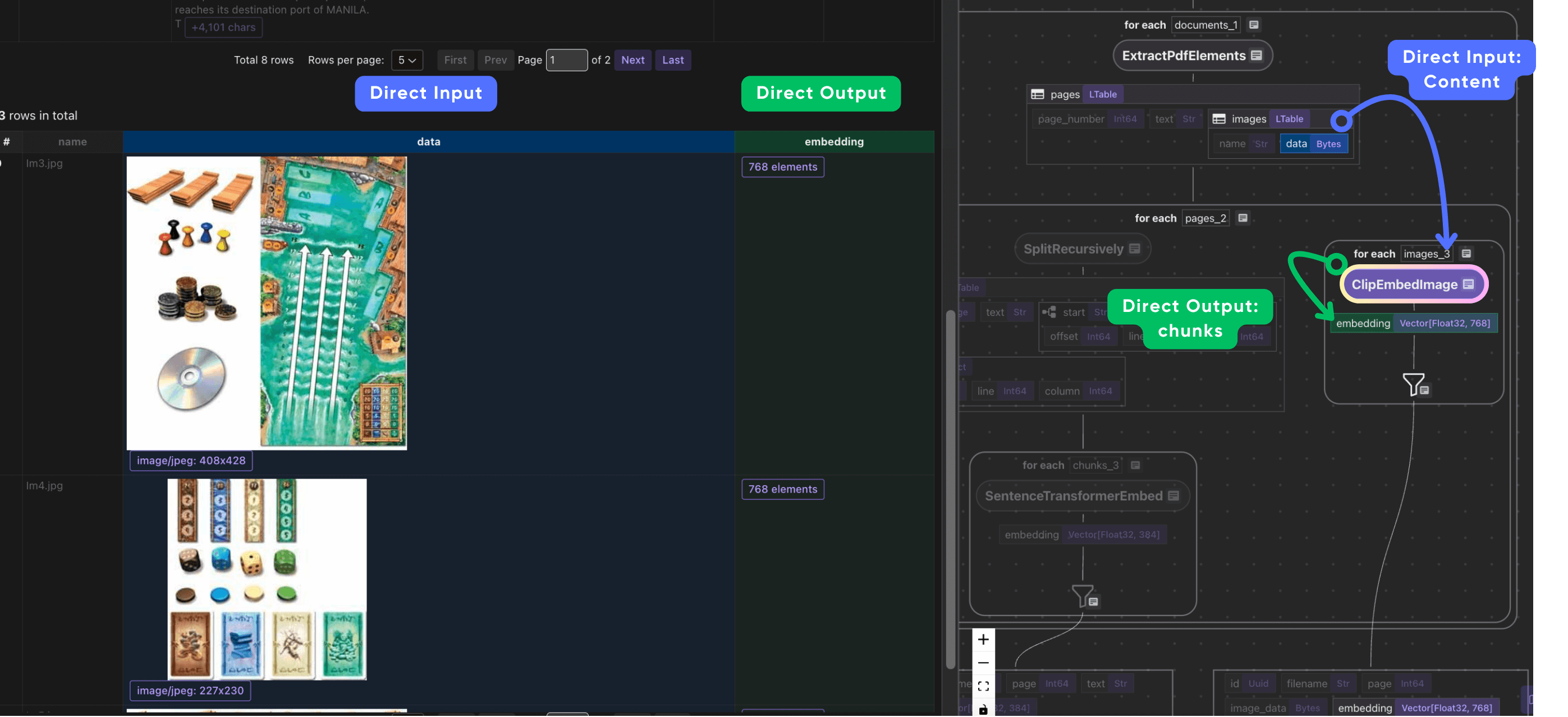
When we collect image outputs, we also want to preserve relevant metadata alongside the embeddings.
For each image, we store not only its embedding and raw image data, but also important metadata like the source file name and page number. This metadata ensures you can always identify which document and page an embedded image came from when retrieving or analyzing results.
Export to Qdrant
Finally, we export the collected data to the target store.
text_output.export(
    "text_embeddings",
    cocoindex.targets.Qdrant(
        connection=qdrant_connection,
        collection_name=QDRANT_COLLECTION_TEXT,
    ),
    primary_key_fields=["id"],
)
image_output.export(
    "image_embeddings",
    cocoindex.targets.Qdrant(
        connection=qdrant_connection,
        collection_name=QDRANT_COLLECTION_IMAGE,
    ),
    primary_key_fields=["id"],
)
🧭 Explore with CocoInsight (Free Beta)
Use CocoInsight to visually trace your data lineage and debug the flow.
It connects locally with zero data retention.
Start your local server:
cocoindex server -ci main
Then open the UI 👉 https://cocoindex.io/cocoinsight
💡 Why This Matters
Traditional document search only scratches the surface — it’s text-only and often brittle across document layouts. This flow gives you multimodal recall, meaning you can:
- Search PDFs by text or image similarity
- Retrieve related figures, diagrams, or captions
- Build next-generation retrieval systems across rich content formats
Compare with ColPali Vision Model (OCR Free)
We also have an example for ColPali
To compare two approaches:
| Aspect | ColPali Multi-Vector Image Grids | Separate Text and Image Embeddings |
|---|---|---|
| Input | Whole page as an image grid (multi-vector patches) | Text extracted via OCR + images processed separately |
| Embedding | Multi-vector patch-level embeddings preserving spatial context | Independent text and image vectors |
| Query Matching | Late interaction between text token embeddings and image patches | Separate embedding similarity / fusion |
| Document Structure Handling | Maintains layout and visual cues implicitly | Layout structure inferred by heuristics |
| OCR Dependence | Minimal to none; model reads text visually | Heavy dependence on OCR (for scanned PDFs) and text extraction |
| Use Case Strength | Document-heavy, visual-rich formats | General image and text data, simpler layouts |
| Complexity | Higher computational cost, more complex storage | Simpler architecture; fewer compute resources needed |
ColPali offers superior vision-text integration for complex documents, while separate text and image embeddings are simpler but may lose important context. Choose based on document type and precision needs.
Support us
⭐ Star CocoIndex on GitHub and share with your community if you find it useful!