Build image search and query with natural language with vision model CLIP
Overview
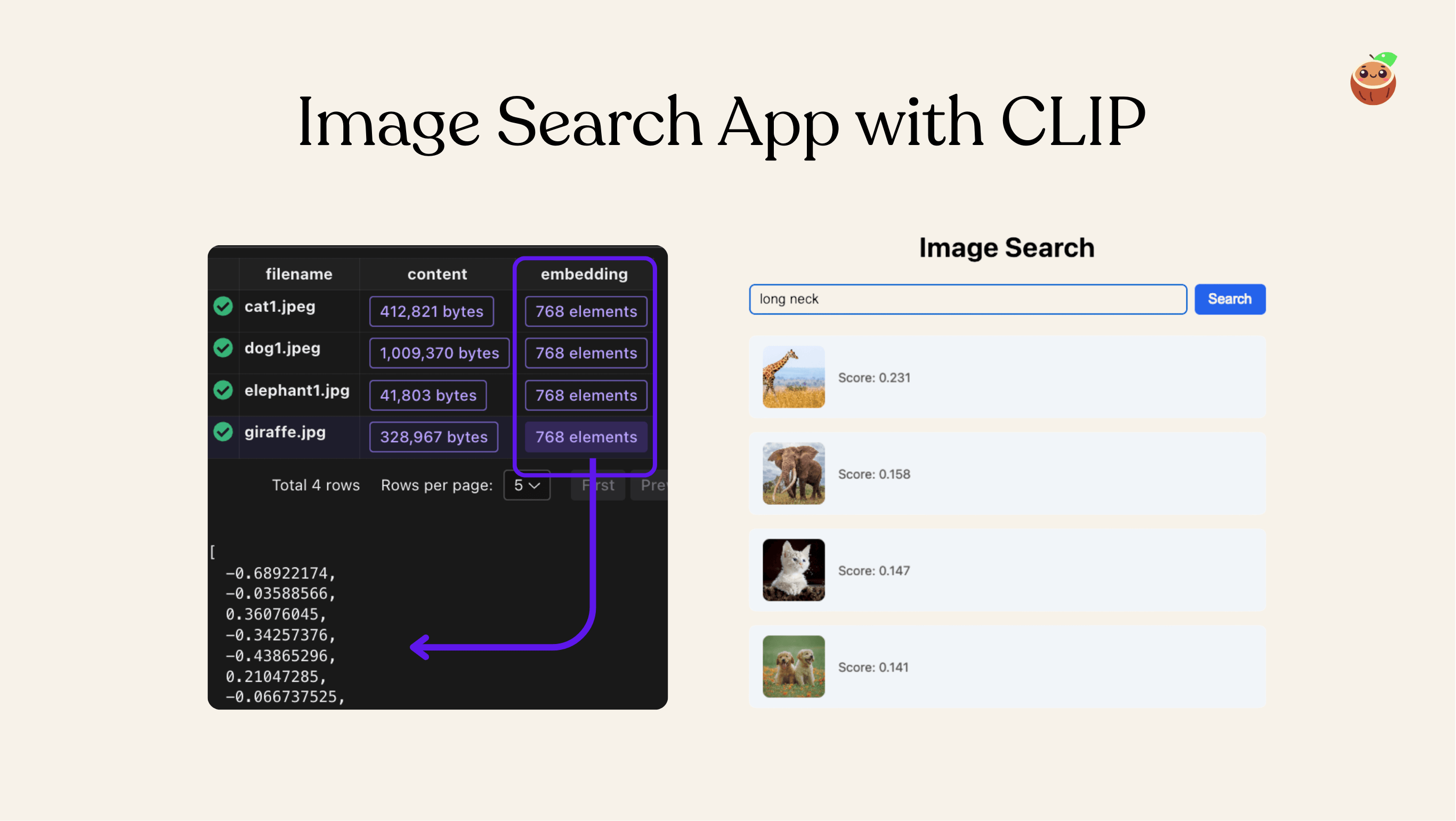
In this project, you'll create an image search system that lets you find images using natural language queries—such as "a cute animal" or "a red car". The system will automatically return the most visually relevant results, without the need for manual labeling or tagging.
We are going to use multi-modal embedding model CLIP to understand and directly embed the image; and build a vector index for efficient retrieval.
We are going use CocoIndex to build the indexing flow. It supports long running flow and only process changed files - we can keep adding new files to the folder and it will be indexed within a minute.
CLIP ViT-L/14
CLIP ViT-L/14 is a powerful vision-language model that can understand both images and texts. It's trained to align visual and textual representations in a shared embedding space, making it perfect for our image search use case.
In our project, we use CLIP to:
- Generate embeddings of the images directly
- Convert natural language search queries into the same embedding space
- Enable semantic search by comparing query embeddings with caption embeddings
Alternative: CLIP ViT-B/32 is a lighter-weight model that runs faster than ViT-L/14. While it may not be quite as accurate, it offers improved speed and requires fewer resources.
Flow Overview
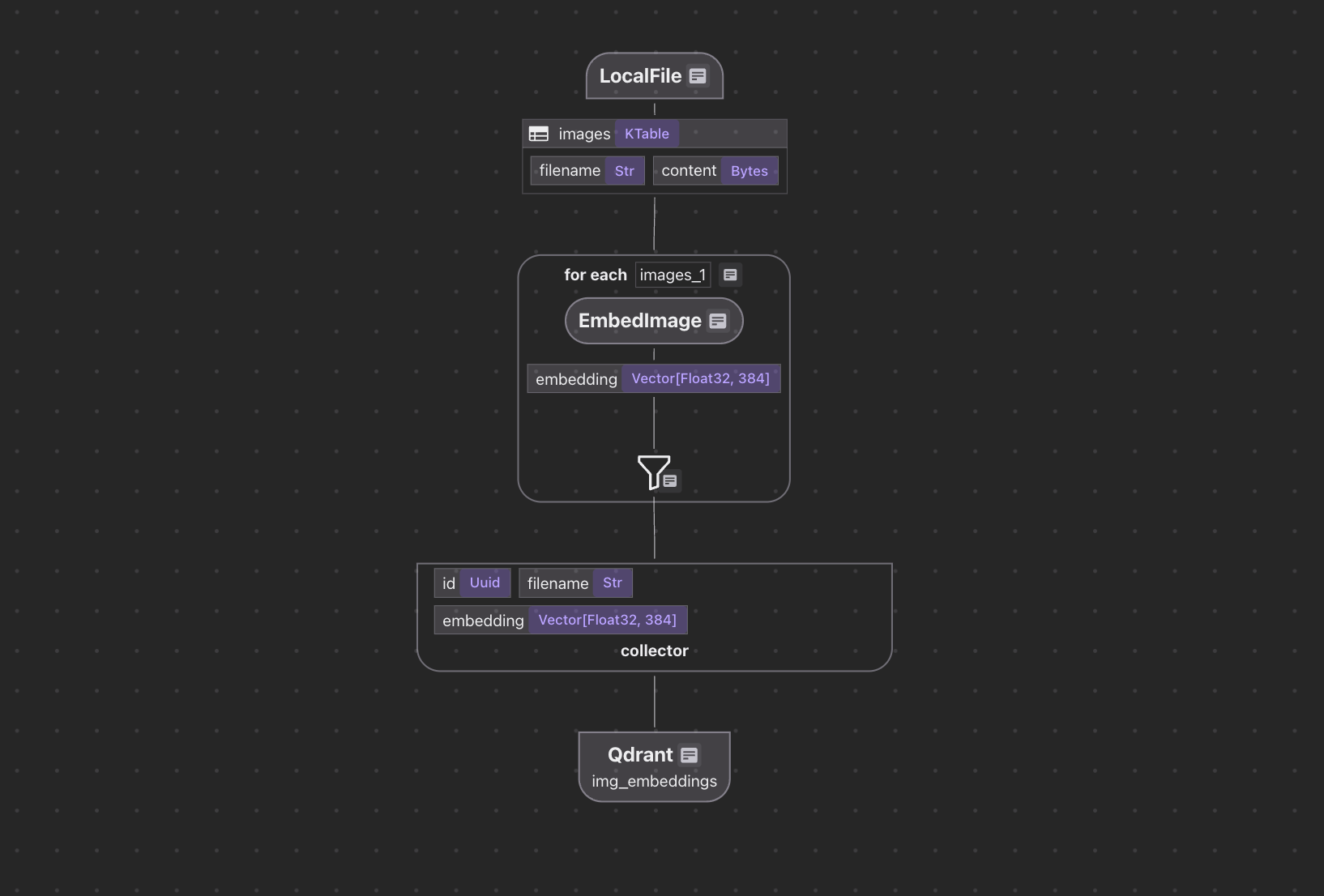
- Ingest image files from your local directory
- Generate embeddings for each image using the CLIP model
- Save these embeddings into a vector database for efficient search and retrieval
Setup
-
Install Postgres if you don't have one.
-
Make sure Qdrant is running
docker run -d -p 6334:6334 -p 6333:6333 qdrant/qdrant
Flow
Define the flow and ingest the images
@cocoindex.flow_def(name="ImageObjectEmbedding")
def image_object_embedding_flow(flow_builder: cocoindex.FlowBuilder, data_scope: cocoindex.DataScope):
    data_scope["images"] = flow_builder.add_source(
        cocoindex.sources.LocalFile(path="img", included_patterns=["*.jpg", "*.jpeg", "*.png"], binary=True),
        refresh_interval=datetime.timedelta(minutes=1)  # Poll for changes every 1 minute
    )
    img_embeddings = data_scope.add_collector()
flow_builder.add_source will create a table with sub fields (filename, content)
interval
The refresh_interval parameter in add_source specifies how frequently CocoIndex will check the source directory (img) for new, modified, or deleted images. For example, datetime.timedelta(minutes=1) means the system will poll for changes every 1 minute, enabling near-real-time indexing of added or updated files.
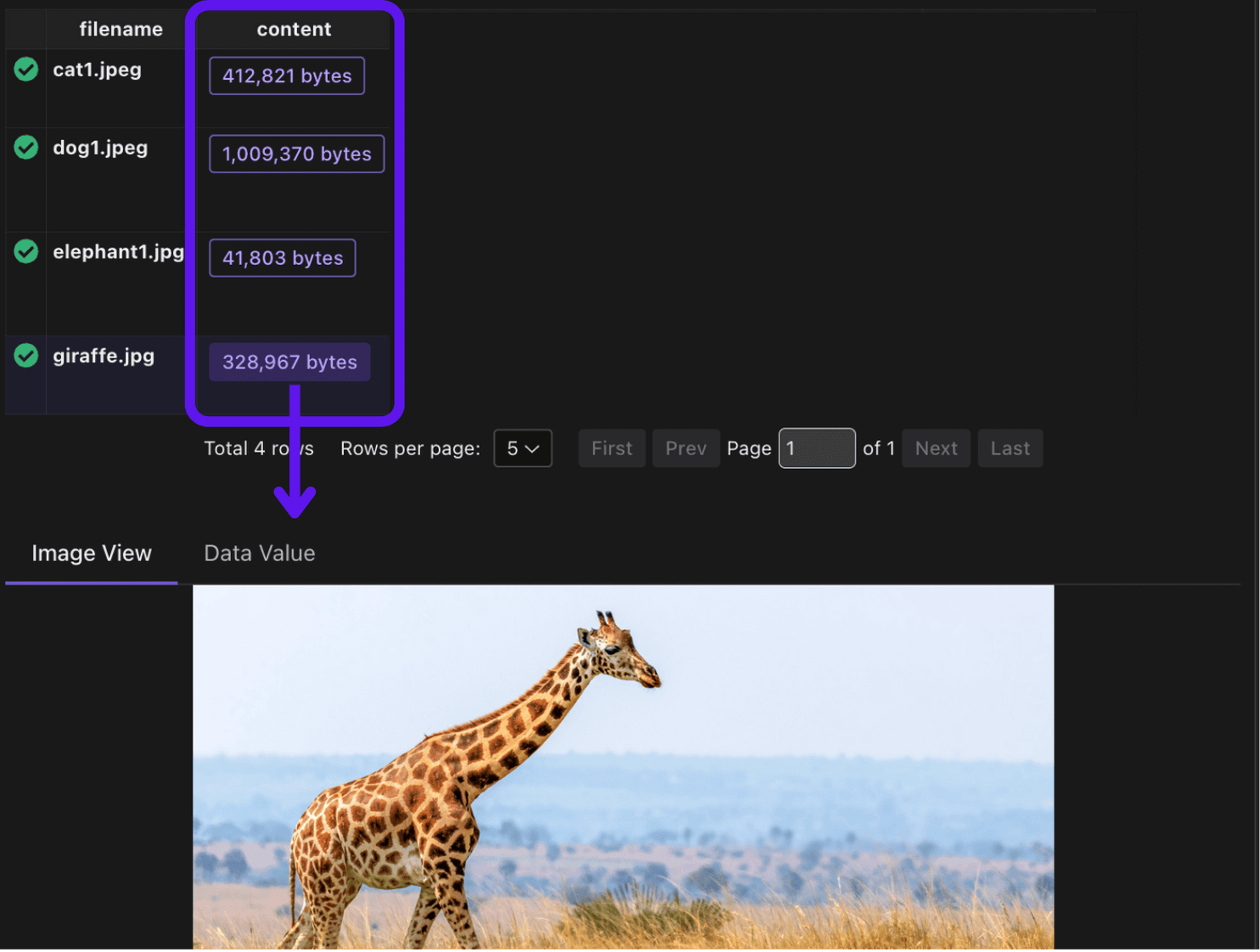
Process each image and collect the information.
Define Custom function to embed the image with CLIP
@functools.cache
def get_clip_model() -> tuple[CLIPModel, CLIPProcessor]:
    model = CLIPModel.from_pretrained(CLIP_MODEL_NAME)
    processor = CLIPProcessor.from_pretrained(CLIP_MODEL_NAME)
    return model, processor
The @functools.cache decorator caches the results of a function call. In this case, it ensures that we only load the CLIP model and processor once.
@cocoindex.op.function(cache=True, behavior_version=1, gpu=True)
def embed_image(img_bytes: bytes) -> cocoindex.Vector[cocoindex.Float32, Literal[384]]:
    model, processor = get_clip_model()
    image = Image.open(io.BytesIO(img_bytes)).convert("RGB")
    inputs = processor(images=image, return_tensors="pt")
    with torch.no_grad():
        features = model.get_image_features(**inputs)
    return features[0].tolist()
embed_image is a custom function that uses the CLIP model to convert an image into a vector embedding.
It accepts image data in bytes format and returns a list of floating-point numbers representing the image's embedding.
The function supports caching through the cache parameter.
When enabled, the executor will store the function's results for reuse during reprocessing,
which is particularly useful for computationally intensive operations.
Process each image and collect the information.
with data_scope["images"].row() as img:
    img["embedding"] = img["content"].transform(embed_image)
    img_embeddings.collect(
        id=cocoindex.GeneratedField.UUID,
        filename=img["filename"],
        embedding=img["embedding"],
    )
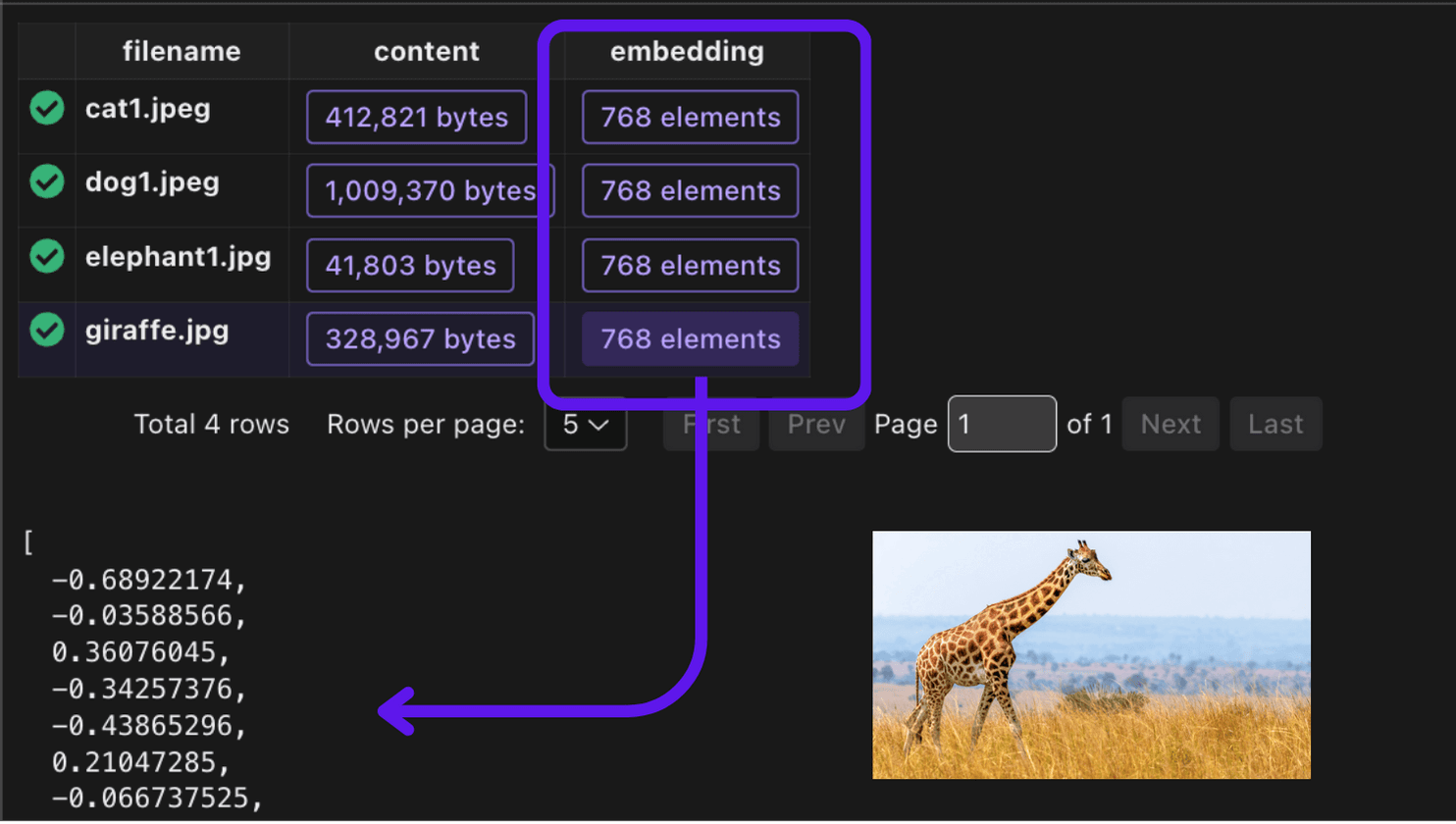
Collect the embeddings
Export the embeddings to a table in Qdrant.
img_embeddings.export(
    "img_embeddings",
    cocoindex.storages.Qdrant(
        collection_name="image_search",
        grpc_url=QDRANT_GRPC_URL,
    ),
    primary_key_fields=["id"],
    setup_by_user=True,
)
Alternative Connectors
CocoIndex supports multiple connectors for storing and querying vector data.
TargetsIt also supports custom connectors if native connectors don't fit your needs.
Custom TargetsQuery the index
Embed the query with CLIP, which maps both text and images into the same embedding space, allowing for cross-modal similarity search.
def embed_query(text: str) -> list[float]:
    model, processor = get_clip_model()
    inputs = processor(text=[text], return_tensors="pt", padding=True)
    with torch.no_grad():
        features = model.get_text_features(**inputs)
    return features[0].tolist()
Defines a FastAPI endpoint /search that performs semantic image search.
@app.get("/search")
def search(q: str = Query(..., description="Search query"), limit: int = Query(5, description="Number of results")):
    # Get the embedding for the query
    query_embedding = embed_query(q)

    # Search in Qdrant
    search_results = app.state.qdrant_client.search(
        collection_name="image_search",
        query_vector=("embedding", query_embedding),
        limit=limit
    )
This searches the Qdrant vector database for similar embeddings. Returns the top limit results
# Format results
out = []
for result in search_results:
    out.append({
        "filename": result.payload["filename"],
        "score": result.score
    })
return {"results": out}
This endpoint enables semantic image search where users can find images by describing them in natural language, rather than using exact keyword matches.
Application
Fast API
app = FastAPI()
app.add_middleware(
    CORSMiddleware,
    allow_origins=["*"],
    allow_credentials=True,
    allow_methods=["*"],
    allow_headers=["*"],
)
# Serve images from the 'img' directory at /img
app.mount("/img", StaticFiles(directory="img"), name="img")
FastAPI application setup with CORS middleware and static file serving The app is configured to:
- Allow cross-origin requests from any origin
- Serve static image files from the 'img' directory
- Handle API endpoints for image search functionality
@app.on_event("startup")
def startup_event():
    load_dotenv()
    cocoindex.init()
    # Initialize Qdrant client
    app.state.qdrant_client = QdrantClient(
        url=QDRANT_GRPC_URL,
        prefer_grpc=True
    )
    app.state.live_updater = cocoindex.FlowLiveUpdater(image_object_embedding_flow)
    app.state.live_updater.start()
The startup event handler initializes the application when it first starts up. Here's what each part does:
-
load_dotenv(): Loads environment variables from a .env file, which is useful for configuration like API keys and URLs -
cocoindex.init(): Initializes the CocoIndex framework, setting up necessary components and configurations -
Qdrant Client Initialization:
- Initializes a
QdrantClientusing the gRPC URL from your environment variables. - Sets the client to prefer gRPC for optimal speed.
- Saves the client to the FastAPI application state, making it accessible in API requests.
- Initializes a
-
Live Updater Initialization:
- Instantiates a
FlowLiveUpdaterwith theimage_object_embedding_flow. - The live updater automatically keeps your image search index updated with any changes to the image folder.
- Activates the updater to continuously monitor and process new or updated images.
- Instantiates a
This initialization ensures that all necessary components are properly configured and running when the application starts.
Frontend
You can check the frontend code here. We intentionally kept it simple and minimalistic to focus on the image search functionality.
Time to have fun!
-
Create a collection in Qdrant
curl -X PUT 'http://localhost:6333/collections/image_search' \
-H 'Content-Type: application/json' \
-d '{
    "vectors": {
    "embedding": {
        "size": 768,
        "distance": "Cosine"
    }
    }
}' -
Setup indexing flow
cocoindex setup mainIt is setup with a live updater, so you can add new files to the folder and it will be indexed within a minute.
-
Run backend
uvicorn main:app --reload --host 0.0.0.0 --port 8000 -
Run frontend
cd frontend
npm install
npm run dev
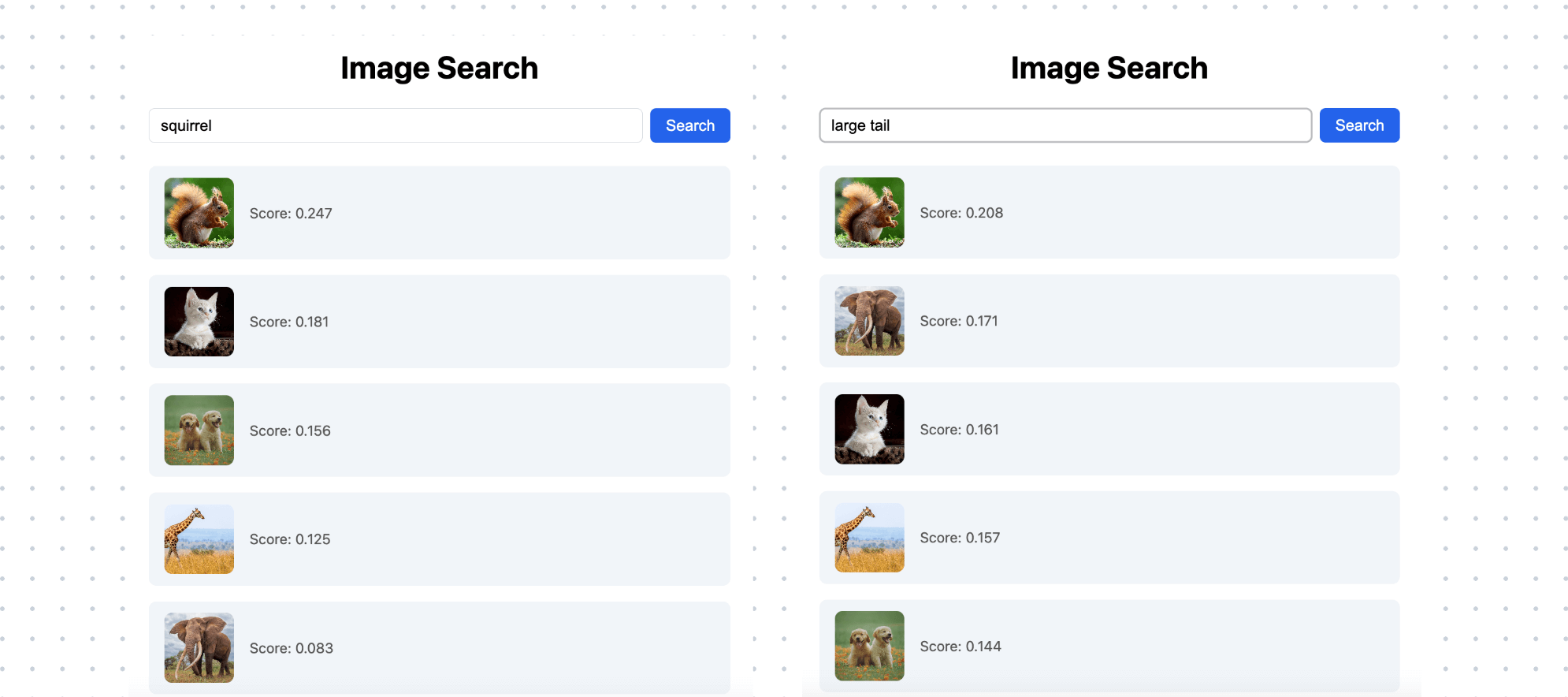
Go to http://localhost:5174 to search.


Now add another image in the img folder, for example, this cute squirrel, or any picture you like.
Wait a minute for the new image to be processed and indexed.
If you want to monitor the indexing progress, you can view it in CocoInsight cocoindex server -ci main.

Connect to Any Data Source
One of CocoIndex’s core strengths is its ability to connect to your existing data sources and automatically keep your index fresh. Beyond local files, CocoIndex natively supports source connectors including:
- Google Drive
- Amazon S3 / SQS
- Azure Blob Storage
Once connected, CocoIndex continuously watches for changes — new uploads, updates, or deletions — and applies them to your index in real time.